All Nexudus tablet apps require device authentication to keep your setup secure and location-specific. The process is quick and straightforward. Once completed, your apps log you in automatically every time.
Let’s walk through how to register, associate, manage, and unassociate a device.
Register and associate your device
All you need to register a device is:
- A Nexudus app you want to use
- A tablet that meets the minimum requirements
- A full unrestricted admin account
Once you have all the details, all you need to do is log in to the app using your admin credentials.
Each app on a device creates a unique ID based on:
- The device’s hardware ID
- The app name (e.g. NexIO, NexBoard, or NexKIOSK)
You can find the devices registered in each of your locations under Settings > Devices on the Admin Panel.
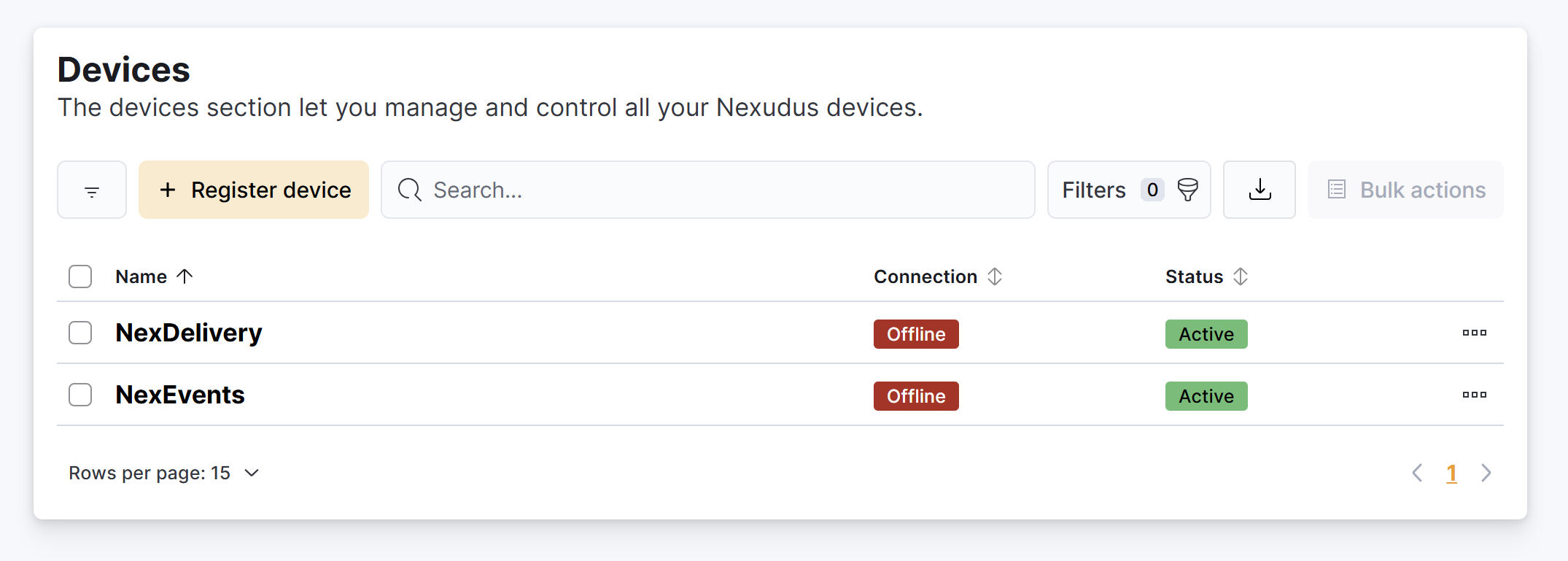
To move a registered device to a new location, you must unassociate the device first.
Unassociating devices
Unassociating resets the app, removes the location link, and deletes the device user.
- Open the app.
- Tap the Admin button (top-left on NexIO).
- Enter valid admin credentials (must have access to the current location).
- Select Sign Out on the TabletLocationScreen.
After this, the app returns to its initial state—ready for setup at a new location.
⚠️ Only admins with access to the current associated location can sign out or re-authenticate the device.
Only full unrestricted admins can:
- Access the admin sections of the app
- Connect a device to a location
- Set or change a device location
- Unassociate or sign out a device
Any full unrestricted admin with location access can perform these tasks, not just the original one who registered the device.