What are resource custom fields
Resource custom fields help you collect and keep data on your resources that Nexudus doesn't offer by default.
For example, a Last H&S check field that lets you keep the date when your resources were last checked by a health and safety officer.
You can keep these custom fields internal or also make them visible to customers booking them on the Members Portal.
For example, have a Yes/No custom field for Premium Members Only and have it as a filter on the Members Portal.
Where you can use resource custom fields
You can create custom fields for resources in a few clicks on the Admin Panel
How to Use Resource Custom Fields
You can use resource custom fields to:
- Collect and store data related to one or more resources
- Expand the default filter options available to admins and customers by letting them filter resources using custom fields.
Creating Resource Custom Fields
-
Log in to dashboard.nexudus.com if you aren't already.
-
Click CRM > Custom Fields.
-
Click Add custom field.
-
Add a Field name.
If you want this custom field to answer a question, the name of the field should be your question.
-
Select Resource as your Record type
-
Select a Field data type based on the information you want to collect.
-
Click the Save Changes button.
Settings
All resource custom fields include two tabs that control what data the field collects and where you can display it.
Visibility
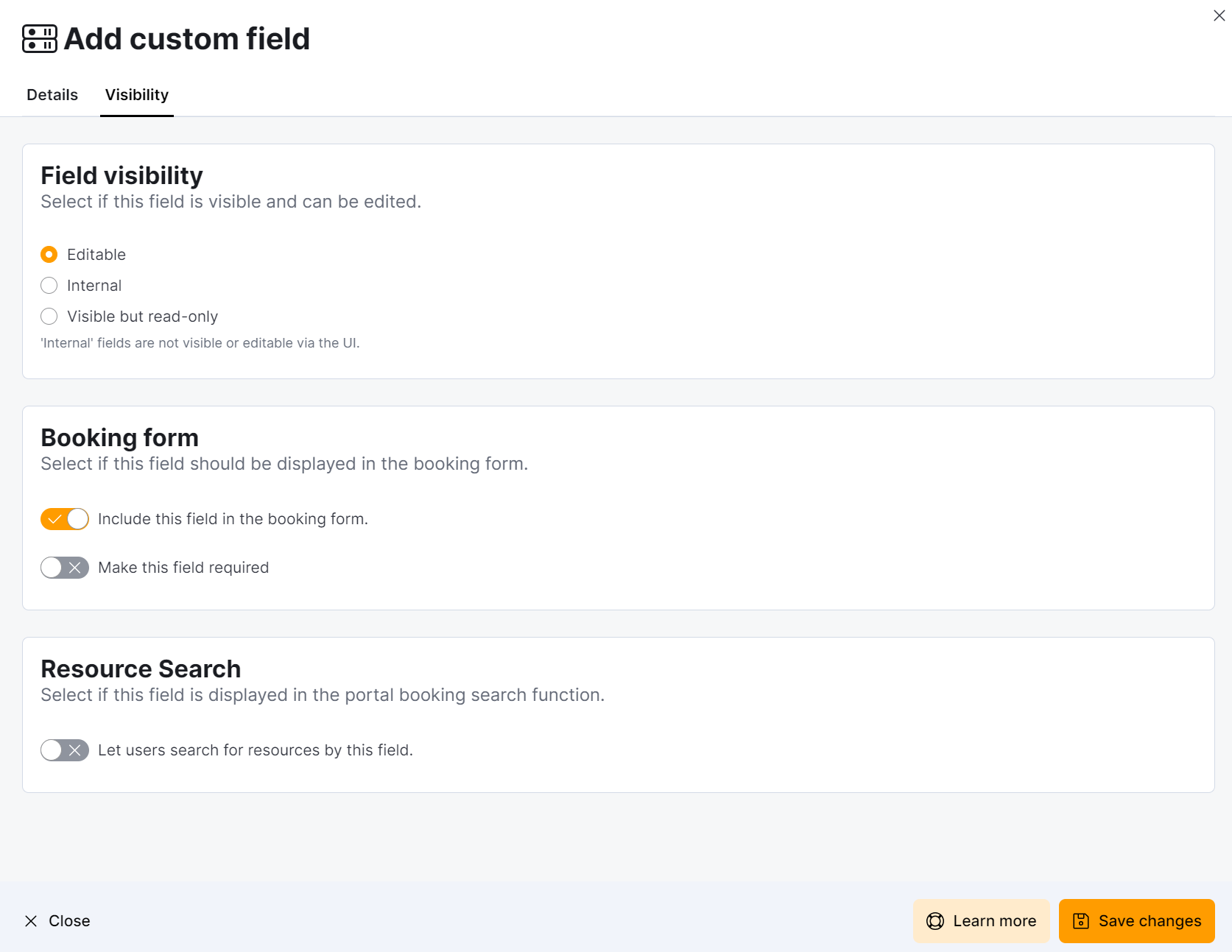
The Visibility tab of your resource custom fields lets you define whether or not admins can see and manage the fields from the Admin Panel. It also lets you include the fields in booking forms on the Members Portal.
| Setting | Details |
|---|---|
| Field visibility | Editable - admins can see and edit the field on the Admin Panel. Internal - the field is only available through the Nexudus REST API. Visible but read-only- the field is visible on the Admin Panel but can only be edited through the Nexudus REST API. |
| Include this field in the booking form | Toggle on to include this field when customers try to book a resource linked to that field. |
| Make this field required | Toggle on to make the field required when customers try to book a resource linked to that field. You must also toggle on Include this field in the booking form for this feature to work. |
| Let users search for resources by this field | Toggle on to let admins filter resources using this field on the Admin Panel. |