You can add translations of your perks in a few clicks from the Admin Panel.
Once you've added a translation, customers using the Members Portal in that language will automatically see the translation instead of the original. If you don't have a translation in the customer's language, they'll still see the perk in the default language.
Let's say your space's default language is English, and you add a translation in French. Customers using the French version of the Members Portal will see the French translation. Customers using the Members Portal in any other language will see the default English version.
The following languages are supported on the Members Portal by default:
- English
- Spanish
- Polish (only available in version 5 and above)
- Portuguese
- French
- German
- Italian
If you'd like to add a translation in a language that isn't supported, you'll need to add the language before translating perks.
You'll need to manually add the translations for each perk you'd like to offer in additional languages.
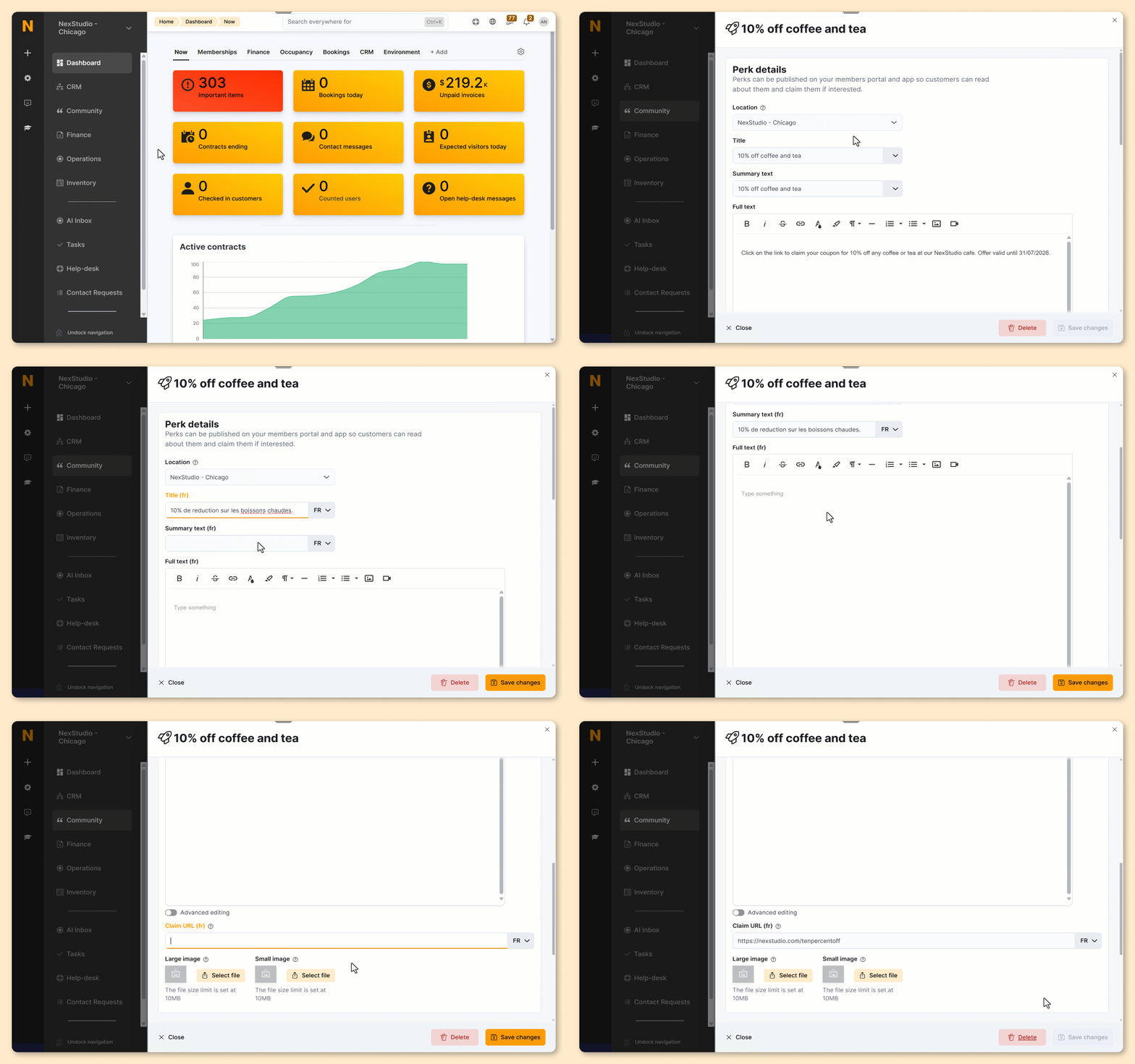
Log in to dashboard.nexudus.com if you aren't already.
- Go to Community > Perks.
- Click on the perk you'd like to translate.
- Open the drop-down menu next to your original Title and select the language you'd like to add a translation for.
You'll need to create the language in Nexudus before translating your perks.
- Add your translation for the Title.
- Add your translation for the Summary text.
- Add your translation for the Full text.
- Add your Claim URL.
Click the Save Changes button.
All set! You can repeat as necessary if you'd like to add translations for additional languages.
If you need to edit your perk later, make sure you select the right language before making edits.
For example, if your default language is English, make sure you select Default language and not English.