Nexudus lets you connect your Dropbox to our template editor. This connection automatically transfers the following files to your Dropbox:
- Custom pages
- Images
Once the connection is enabled, each of your Nexudus locations has its own folder within the Nexudus Spaces folder in Dropbox.

This connection lets you apply all your edits saved in Nexudus to the corresponding files in Dropbox. You can also apply all your edits saved in Dropbox to the corresponding files in Nexudus.
Connecting Dropbox and Nexudus
All you need to enable the connection is a Dropbox account and a full unrestricted admin account in Nexudus.
-
Log in to dashboard.nexudus.com if you aren't already.
-
Click Dropbox > Connect to Dropbox.
-
Log in to your Dropbox account.
-
Click Allow to let Nexudus connect to your Dropbox account.

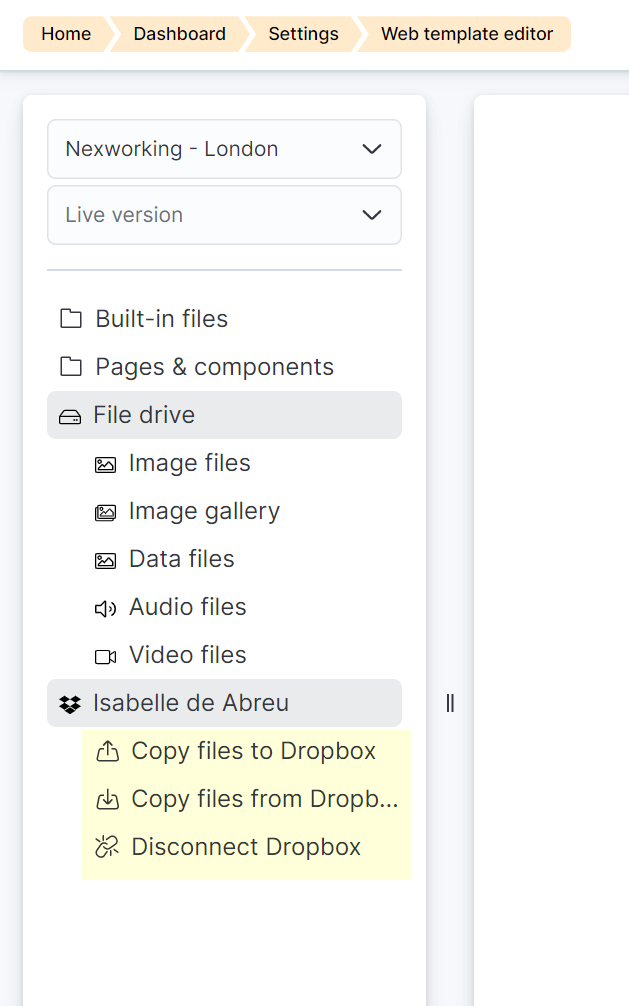
You are automatically redirected to the template editor in Nexudus. You should now be able to see your Dropbox account name and three options: Copy files to Dropbox, Copy files from Dropbox, and Disconnect Dropbox.
Syncing Your Dropbox Files in Nexudus
You can push any changes applied in Dropbox to the corresponding files in the Nexudus template editor by simply clicking on Copy files from Dropbox.
Syncing your Nexudus Files in Dropbox
You can push any changes made to your template files in Nexudus to the corresponding files in your Dropbox account by simply clicking on Copy files to Dropbox.
Disconnecting Dropbox and Nexudus
You can disconnect Dropbox from your Nexudus account at any point in just a few clicks.
-
Log in to dashboard.nexudus.com if you aren't already.
-
Click Dropbox > Disconnect Dropbox.
You should also disconnect Nexudus directly from your Dropbox account.
-
Log in to your Dropbox account.
-
Click Settings > Connected Apps.
-
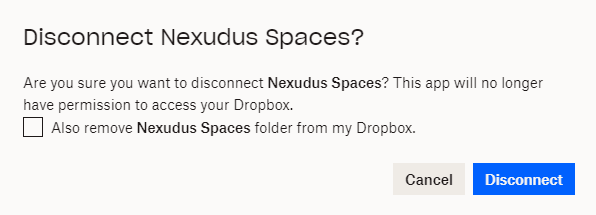
Click the arrow icon next to Nexudus Spaces and then click Disconnect.

- Tick the checkbox if you want to remove all Nexudus files from your Dropbox and click Disconnect.
Your Dropbox and your Nexudus account are now fully disconnected.