Most admin accounts have access to important and sensitive information. To reduce the risk of unauthorized access, admins should change their passwords at least once a month.
Admin password minimum requirements
All admin passwords must meet these minimum requirements:
- Be at least 8 characters
- One or more upper case letters
- One or more lower case letters
- One or more numbers
- One or more special characters (! £ $ % ^ & \ - * #: @ ? > <)
Admin password best practice
- Never share your passwords with anyone.
- Don’t reuse passwords from other tools or personal accounts.
- Never save or store passwords in plain text such as notes apps, documents, or clipboards.
- Avoid predictable patterns that others can easily guess, like names, birth dates, or common words.
- Use a password manager if your company provides one.
For additional security, we also strongly recommend enforcing two-factor authentication in your space.
Changing your password as an admin
Log in to dashboard.nexudus.com if you aren't already.
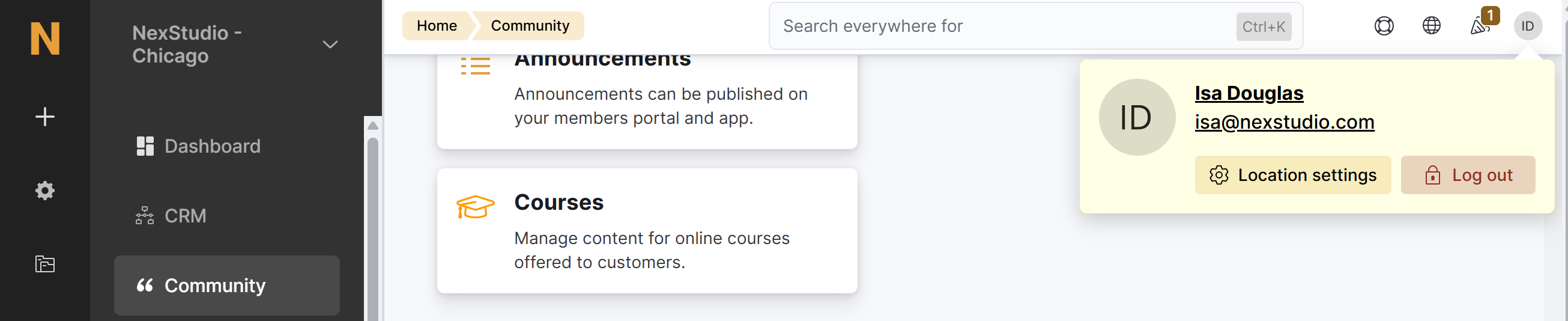
- Click on your icon in the top-right corner of the screen and click on your name.
- Scroll down to the Password section and add your New password.
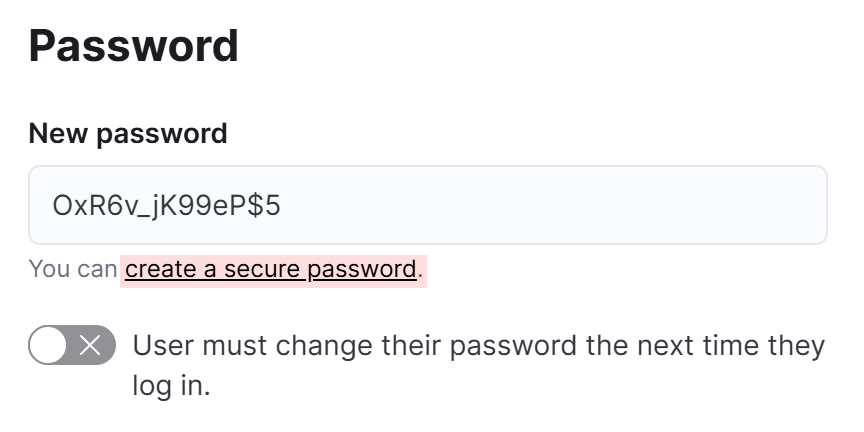
If you use a password manager, save your new password there before moving to the next step.
-
Make sure User must change their password the next time they log in is toggled off.
-
Click the Save Changes button.
All set! Your new password will be enforced next time you log in as an admin.
If you haven't done so already, we also recommend enabling two-factor authentication. It takes less than 5 minutes and adds an extra layer of security to your account.