Increasing your prices or adjusting a mistake in contract dates? Editing contracts in bulk is quick and easy for any full unrestricted admin to change all active, cancelling, or starting contracts in one go.
You can update the following contracts details in bulk:
- Start date
- Next invoice date
- Cancellation date
- Next plan
- Update price (plan price only)
If you'd like to change dates and pricing on new contracts, we recommend editing your plans instead.
Contract Dates
You can edit the contract dates of all your contracts in a few clicks on the Admin Panel. This is particularly handy in scenarios where you've entered the wrong date by accident on all contracts.
.png)
Log in to dashboard.nexudus.com if you aren't already.
- Click Settings > Bulk edit.
- Click on Start new edit.
- Select Contracts.
- Click on Filter if you want to target specific groups of contracts. You can pick the following groups of contracts:
- All contracts (not cancelled)
- Active (with or without cancellation date)
- Starting (inactive with future start date)
- Cancelling (active with set cancellation date)
- Click on Continue to editing.
- Toggle on ant of the following, based on the dates you want to bulk edit:
- Update start date
- Update next invoice date
- Update cancellation date
- For each of the toggles you've enabled, you can:
- Select a new date
- Move the current dates by a set number of days
- Remove the date altogether
- Review your edits and click Edit xx records.
All set! Your edits run in the background, meaning you can resume your other activities on the Admin Panel.
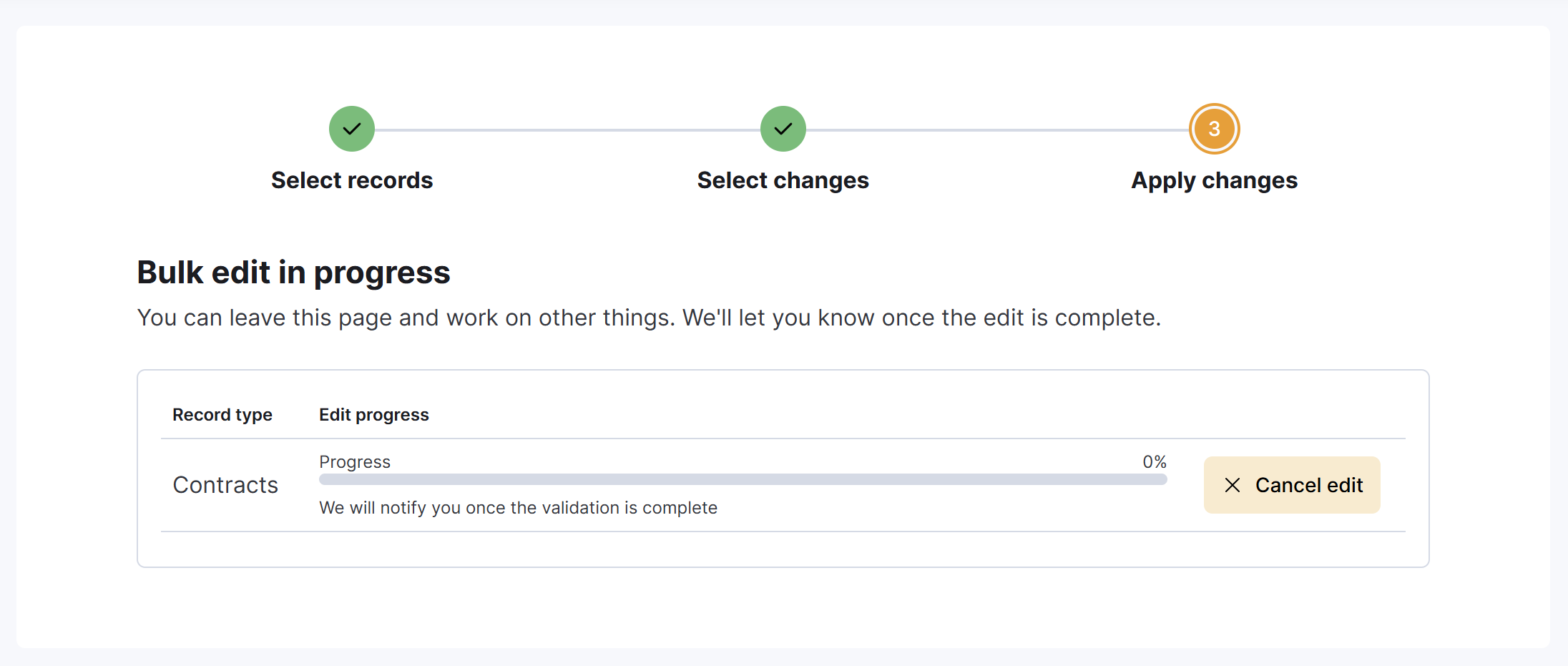
Edits can take a bit longer if you have a large number of records to edit.
Next plan
This bulk update option is ideal if you want to apply the same plan to all contracts.
Log in to dashboard.nexudus.com if you aren't already.
- Click Settings > Bulk edit.
- Click on Start new edit.
- Select Contracts.
- Click on Filter if you want to target specific groups of contracts. You can pick the following groups of contracts:
- All contracts (not cancelled)
- Active (with or without cancellation date)
- Starting (inactive with future start date)
- Cancelling (active with set cancellation date)
- Click on Continue to editing.
- Toggle on Update next plan.
- Select the next plan you want to include for the selected contracts. You can also remove the next plan for all existing contracts.
- Review your edits and click Edit xx records.
All set! Your edits run in the background, meaning you can resume your other activities on the Admin Panel.
Edits can take a bit longer if you have a large number of records to edit.
Updating price
This bulk update option is ideal when you need to change the price of contracts by a certain percentage.
For example, a 5% price increase every year, or a one-off price adjustment to absorb increasing operational costs.
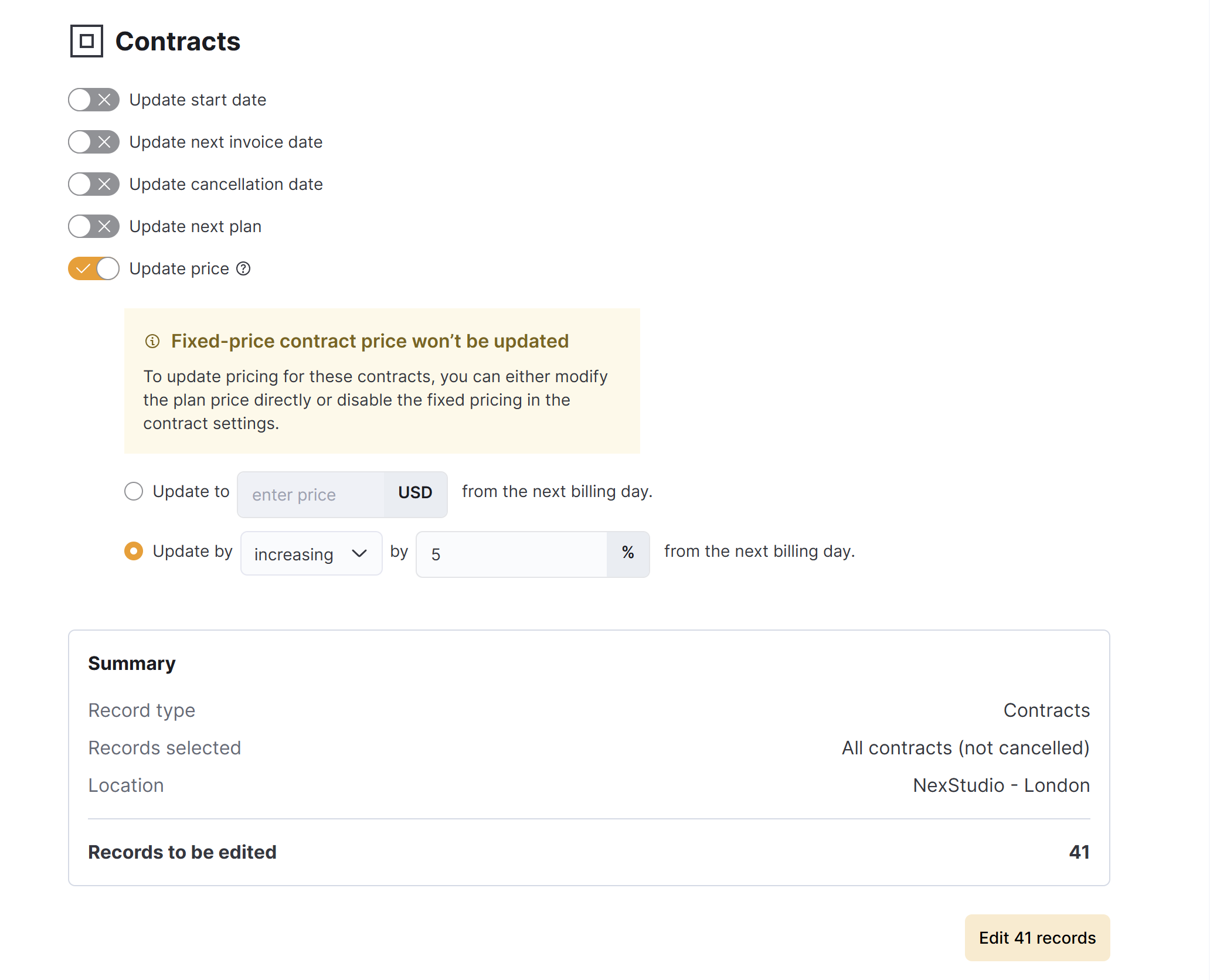
It is a great way to increase or decrease your prices while retaining all the original contract information and components, such as deposits and products.
We recommend changing the price of each relevant plan and communicating that to your customers using reminders or a newsletter.
Log in to dashboard.nexudus.com if you aren't already.
- Click Settings > Bulk edit.
- Click on Start new edit.
- Select Contracts.
- Click on Filter if you want to target specific groups of contracts. You can pick the following groups of contracts:
- All contracts (not cancelled)
- Active (with or without cancellation date)
- Starting (inactive with future start date)
- Cancelling (active with set cancellation date)
- Click on Continue to editing.
- Toggle on Update price.
- Select the new price for the selected contracts or select by which % to increase or decrease them.
The price of any plan component or recurring product tied to the contract won't be changed.
- Review your edits and click Edit xx records.
All set! Your edits run in the background, meaning you can resume your other activities on the Admin Panel.
Edits can take a bit longer if you have a large number of records to edit.