Customers can easily download and pay their invoices from the Members Portal.
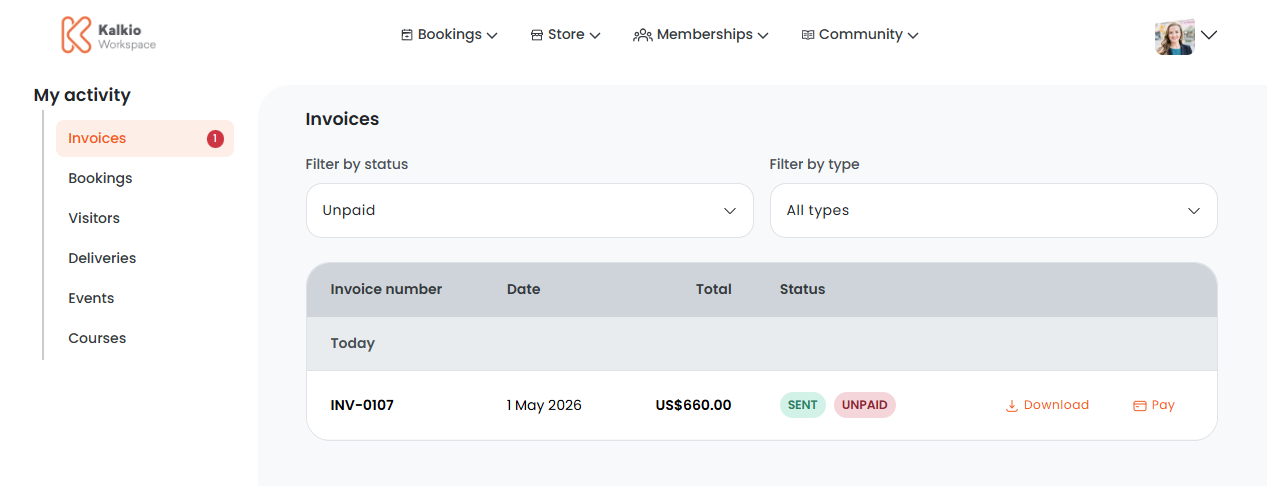
Downloading Invoices
Customers can easily download their invoices to keep a copy for their records.
- Log in to the Members Portal if you haven't already.
- Open the drop-down menu next to your profile.
- Select My Activity.
- Select Invoices.
Unpaid invoices are shown by default.
You can filter invoices by Status and Type.
- Click Download next to the invoice you'd like to download.
Your download should only take a few seconds. You can find your PDF file in the Downloads folder of your device.
Paying Invoices
Customers can easily pay their invoices directly from the Members Portal.
- Log in to the Members Portal if you haven't already.
- Open the drop-down menu next to your profile.
- Select My Activity.
- Select Invoices.
Unpaid invoices are shown by default.
You can filter invoices by Status and Type.
- Click Pay next to the invoice you'd like to download.
Customers will be redirected to the payment screen.
How customers pay their invoices depends on the payment methods you've enabled for your space. Once customers have successfully made a payment, they'll receive an email confirmation.
You'll also receive an email confirmation when customers pay their invoices.