Customers can easily manage their event tickets from the My Activity section of the Members Portal.
Customers can send tickets if they need to resend a copy of their ticket to their email.
For example, a customer accidentally deleted the email containing their event ticket.
Customers can also cancel tickets if they can no longer attend the event.
For example, a customer has a scheduling conflict and wants to give someone else the chance to attend.
You can easily disable event ticket cancellations from the Admin Panel.
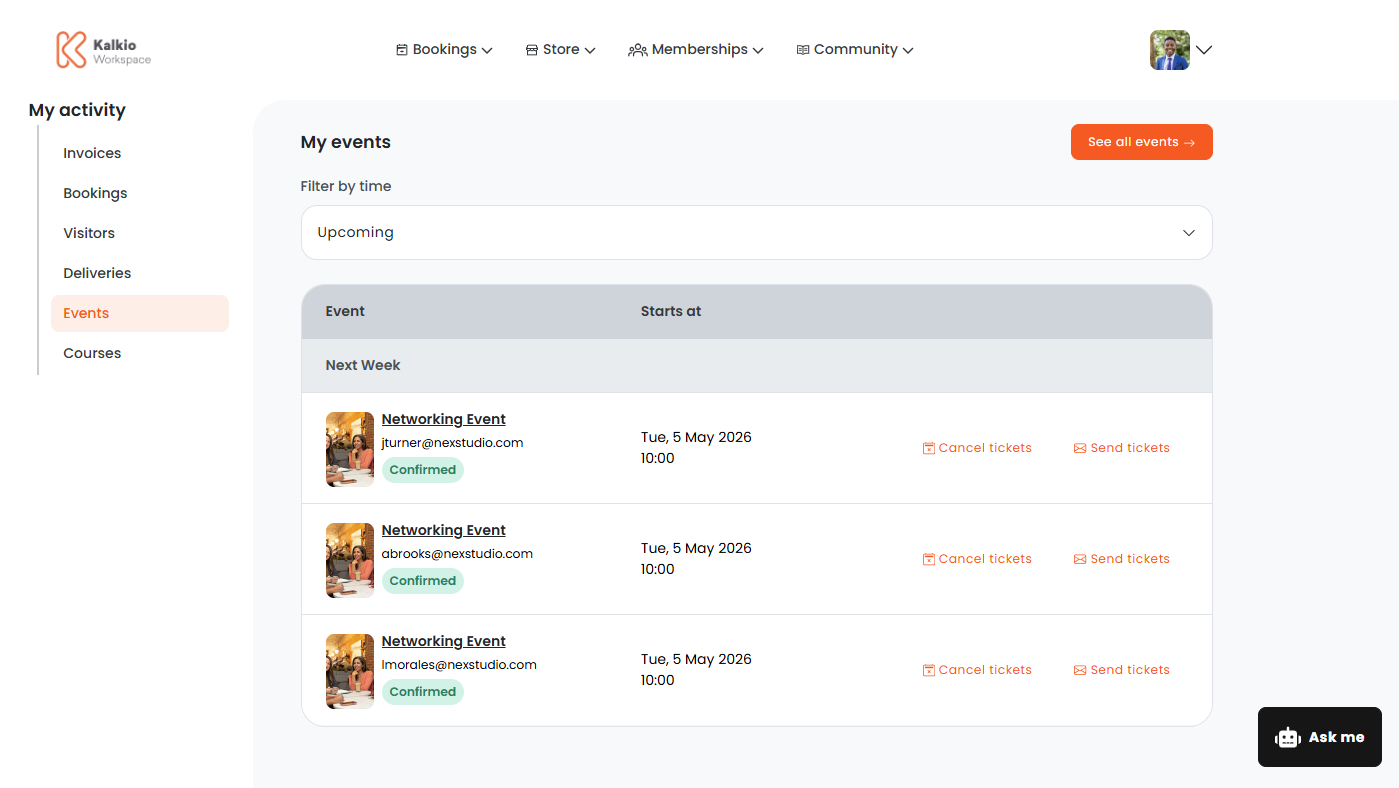
Sending Event Tickets
Customers can resend tickets if they need another copy.
- Log in to the Members Portal if you haven't already.
- Open the drop-down menu next to your profile.
- Select My Activity.
- Select Events.
- Click on Send tickets next to the ticket you'd like to resend.
- Click Yes, send tickets.
All set! The customer will receive an email with another copy of their ticket.
Cancelling Event Tickets
Customers can cancel their event tickets from the Members Portal if plans change.
- Log in to the Members Portal if you haven't already.
- Open the drop-down menu next to your profile.
- Select My Activity.
- Select Events.
- Click Cancel next to the ticket you'd like to cancel.
- Select a Cancellation reason.
- Click Cancel ticket.
All set! The ticket has been cancelled.