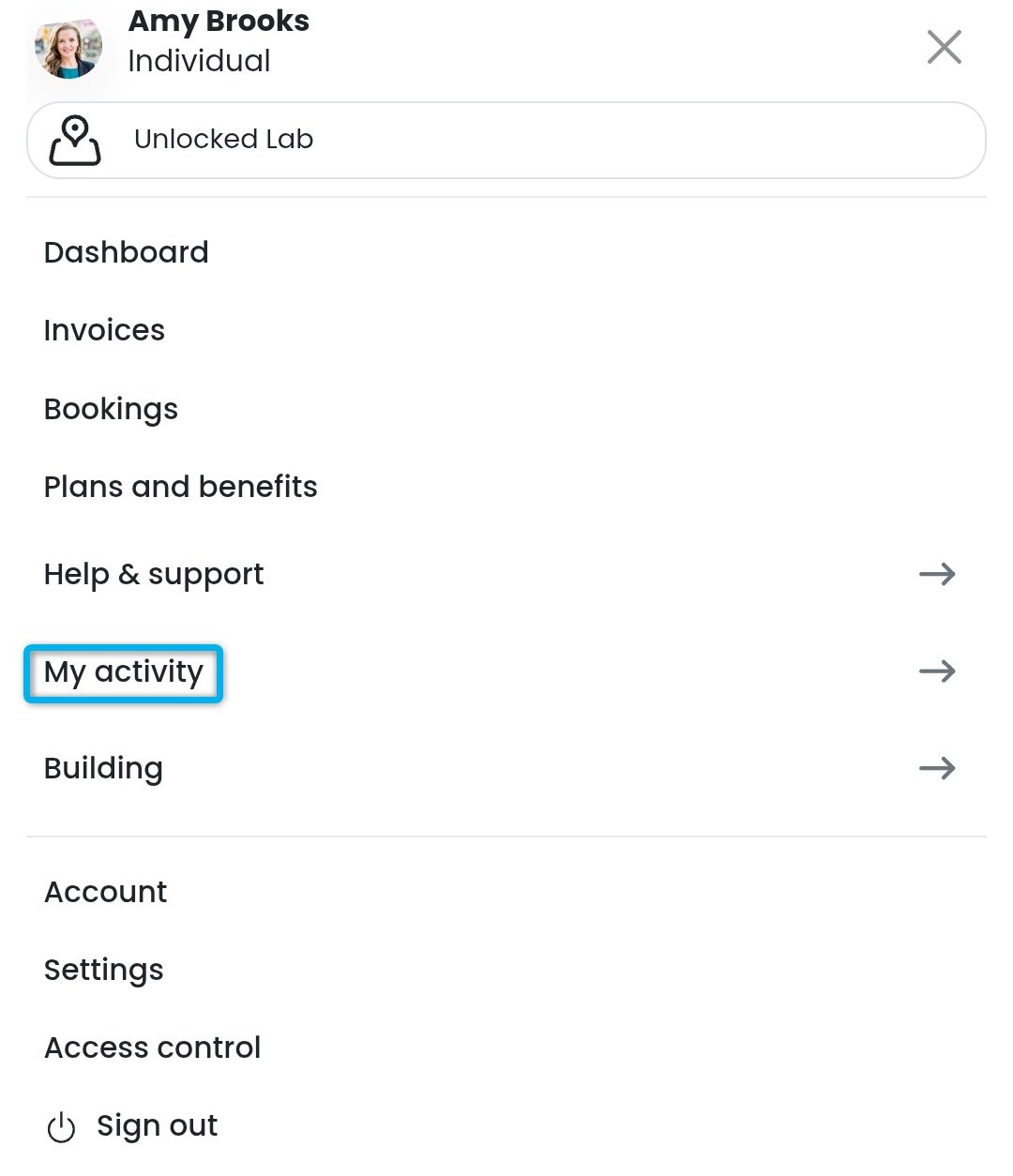
Customers can easily manage their event tickets from the My Activity section of the Passport app. They simply need to tap My Activity > Events to view their purchased tickets.
Customers can resend their event tickets to their email or cancel their tickets if they can no longer attend. You can control whether customers can cancel their tickets through your Event Ticket Settings.
Resending Event Tickets
Customers can easily send another copy of their event tickets to their email.
For example, they accidentally deleted the email with their event ticket.
Open the Passport app if you haven't already.
Tap your icon to open the drop-down menu.
- Tap My activity.
- Tap Events.
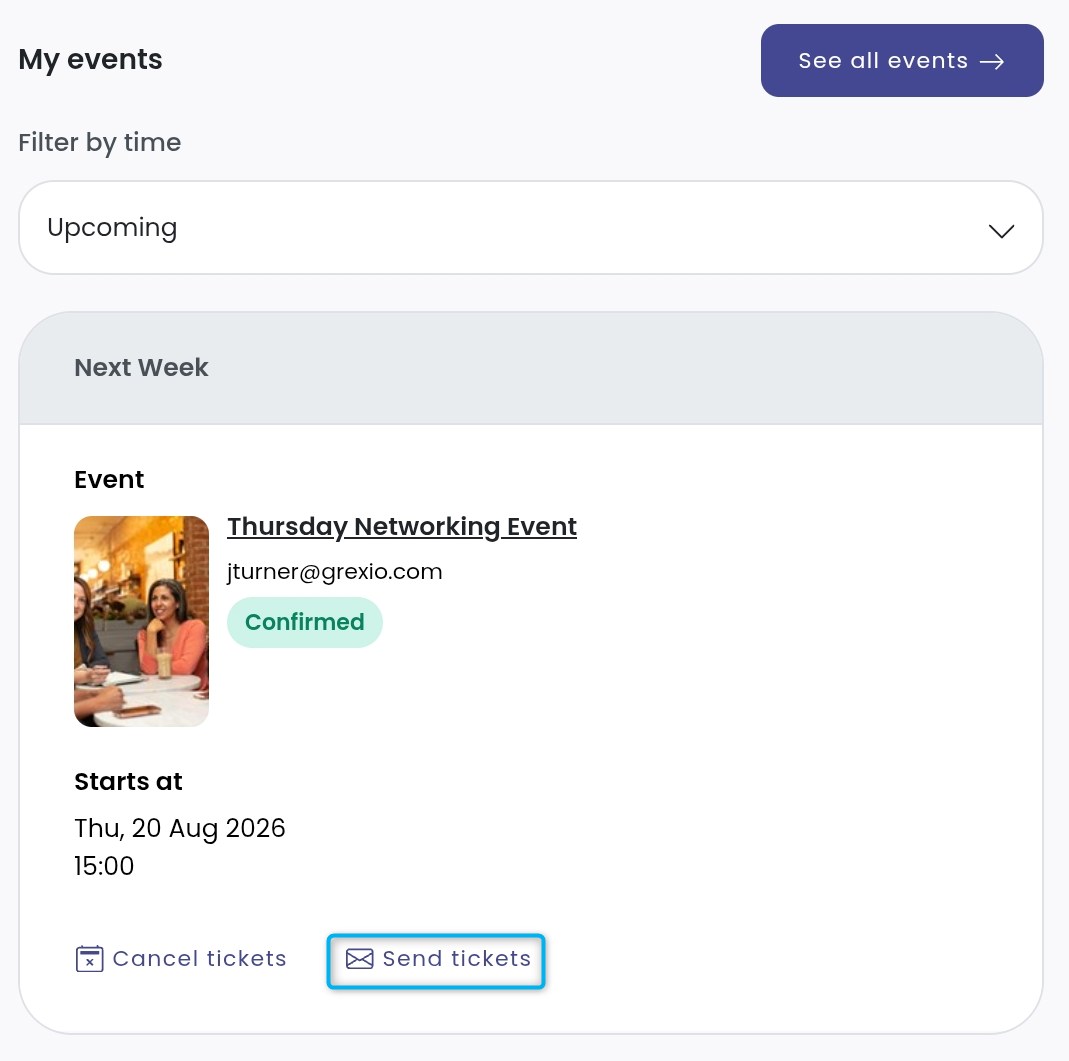
- Tap Send tickets next to the ticket you'd like to resend.
- Tap Yes, send tickets.
All set! The customer will receive an email with a copy of their event tickets.
Cancelling Event Tickets
Customers can cancel their tickets if they can no longer attend the event.
For example, they become ill and can no longer attend the event.
Open the Passport app if you haven't already.
Tap your icon to open the drop-down menu.
- Tap My activity.
- Tap Events.
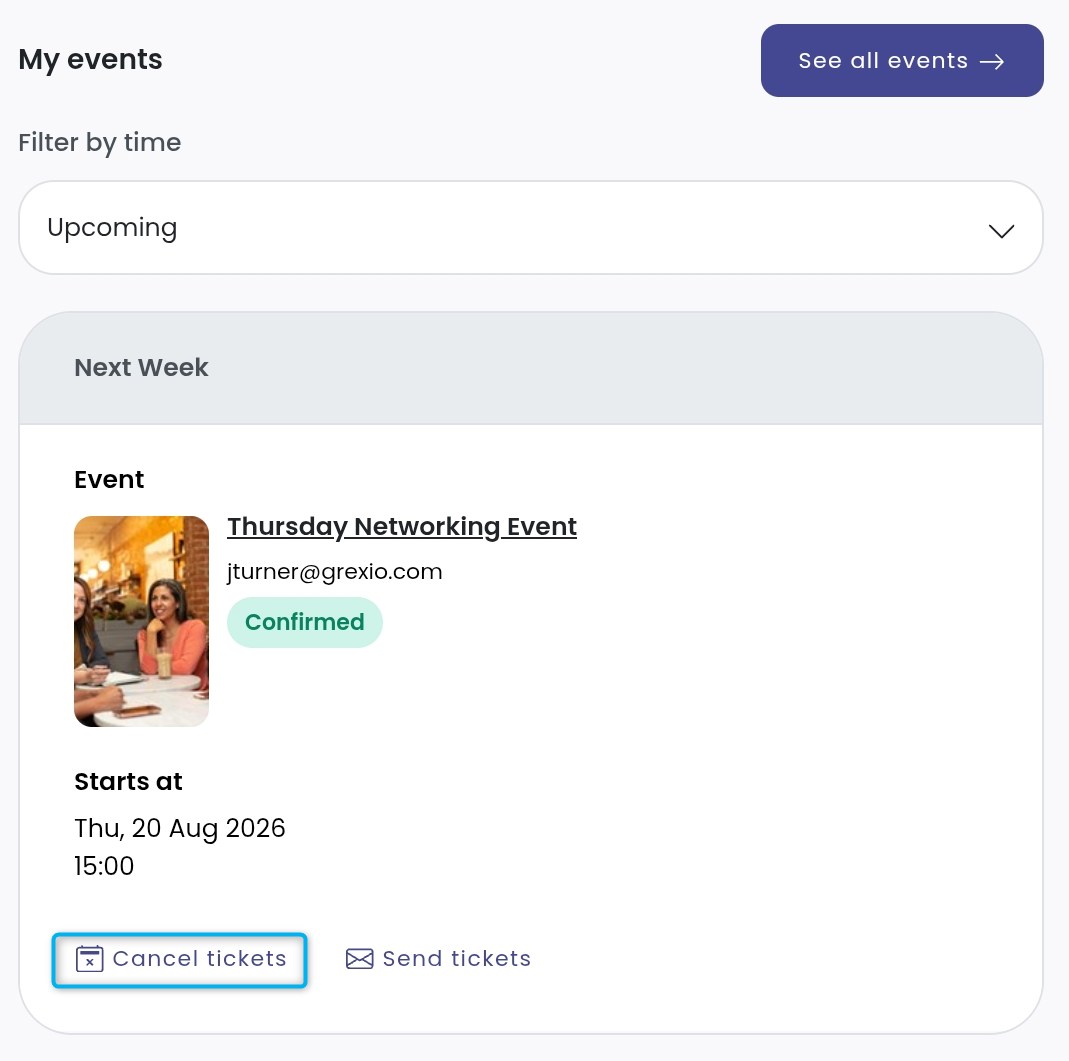
- Tap Cancel next to the ticket you'd like to cancel.
- Select a Cancellation reason.
- Click Cancel ticket.
All set! The event ticket has been cancelled.