Customers can easily manage their plans from the Passport app. They can freeze, resume, and cancel their plans just like on the Members Portal.
Freezing plans
Customers can freeze their plans if they need to pause their membership for a period of time.
For example, a customer wants to freeze their plan to travel for a few months.
Open the Passport app if you haven't already.
Tap your icon to open the drop-down menu.
- Tap My plan.
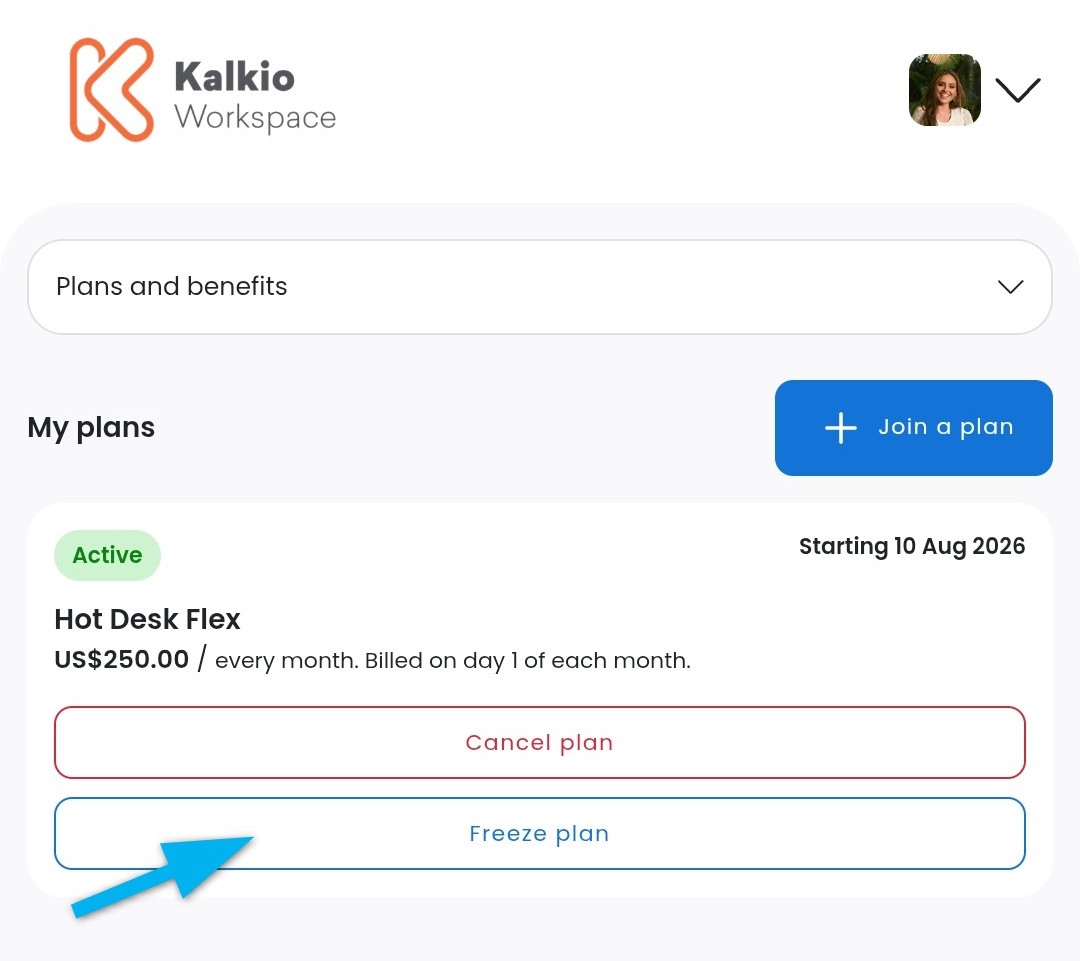
- Tap Freeze plan on the plan you'd like to freeze.
- Under Freeze from, select the date you'd like to start the freeze.
- Under Freeze until, select the date you'd like to resume your plan.
- Tap Freeze plan.
All set! The plan will be frozen between the selected dates.
Customers can cancel the freeze before it begins if they change their mind.
They can also resume their plans any time if they want to resume their membership before the freeze ends.
Resuming Plans
Customers can resume their frozen plans if they want to restart their plan before the freeze is scheduled to end.
For example, a customer ended up returning early from their travels and wants to enjoy their membership again.
Open the Passport app if you haven't already.
Tap your icon to open the drop-down menu.
- Tap My plan.
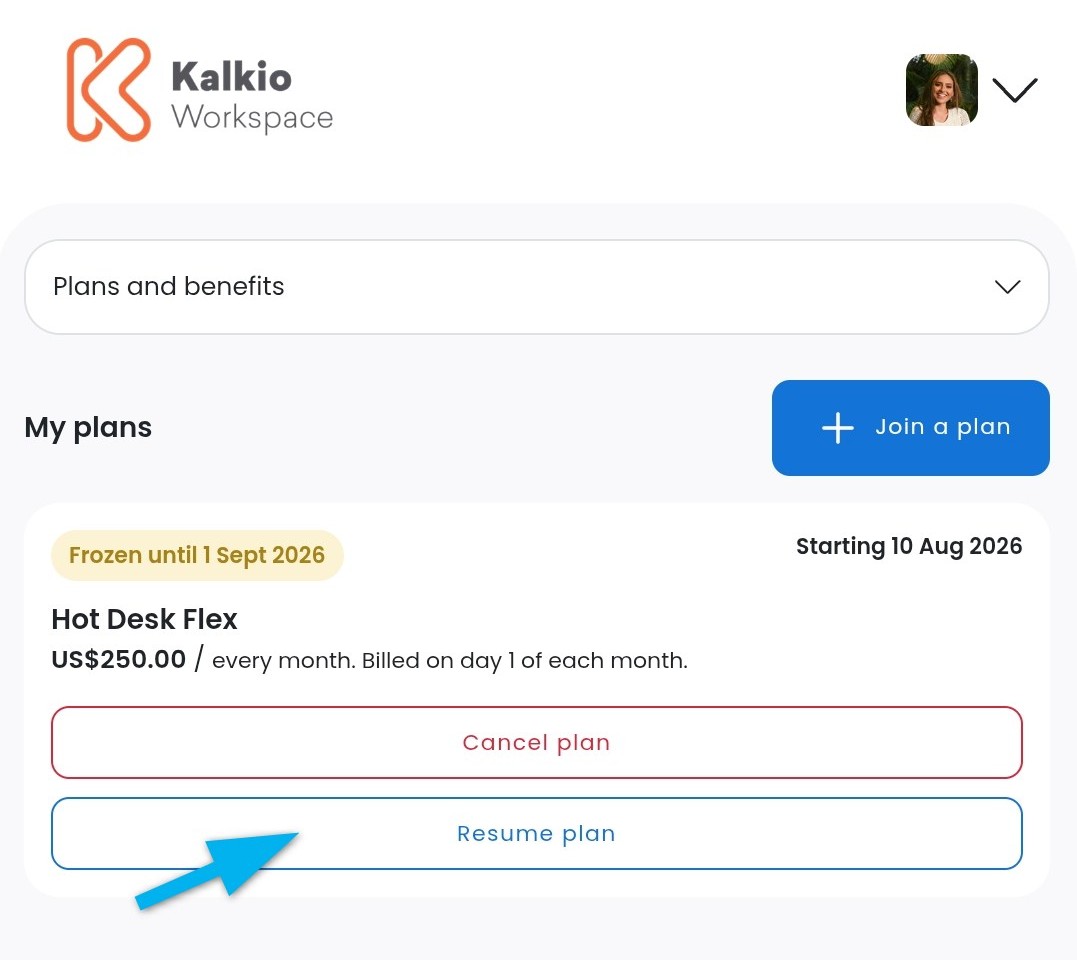
- Tap Resume plan on the plan you'd like to resume.
- Select whether you'd like to resume your plan immediately or at the next billing cycle.
- Tap Resume plan.
All set! The plan will resume on the date selected.
Cancelling Plans
Customers can cancel their plans from the Passport app.
For example, a customer is moving to another city.
Open the Passport app if you haven't already.
Tap your icon to open the drop-down menu.
- Tap My plan.
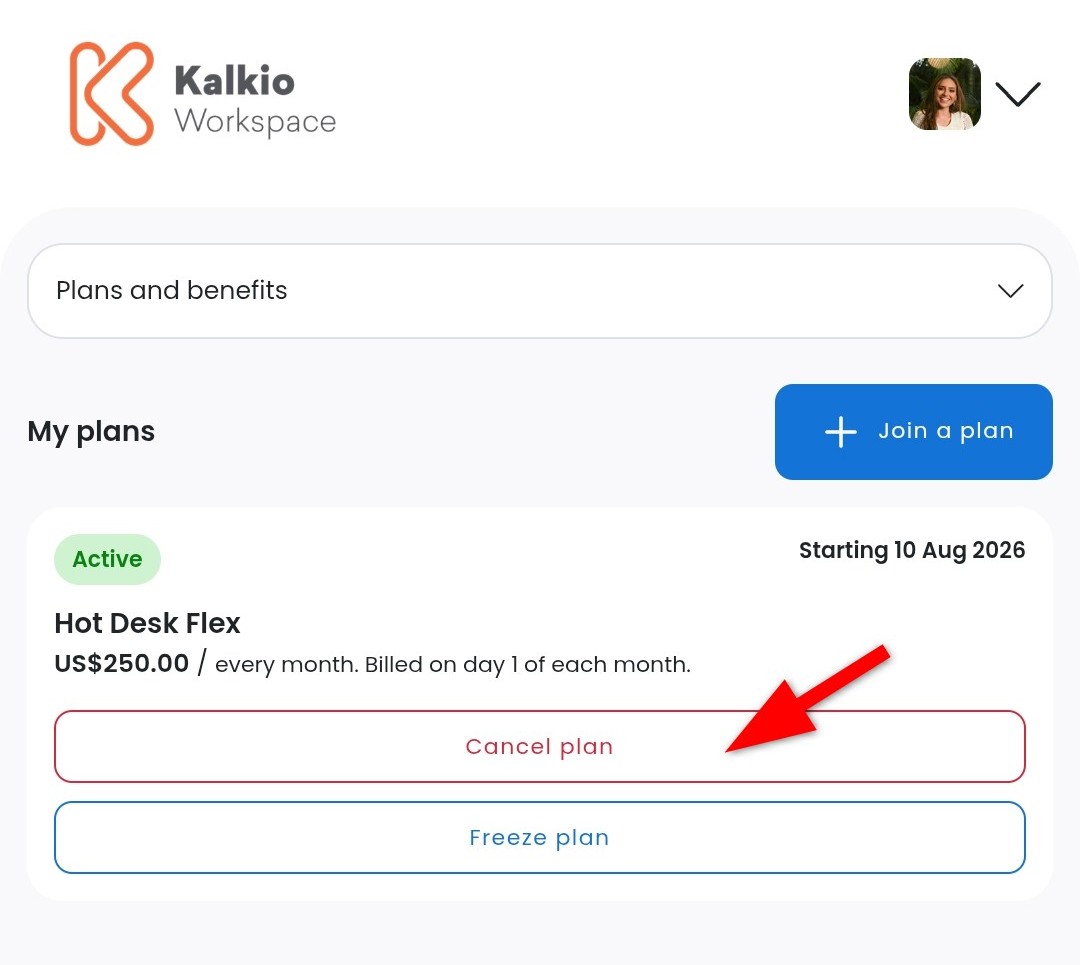
- Tap Cancel plan on the plan you'd like to cancel.
- Select a Cancellation reason.
- Enter Additional notes if needed.
- Select a Cancellation date.
- Tap Cancel plan.
All set! The plan will be cancelled on the selected date.