The Store is enabled as long as you have at least one product published on the Members Portal. To disable the Store, you'll need to make sure you don't have any published products on the Members Portal.
Portal access settings for the Store have been deprecated.
If you want to sell products in the Store, you'll need to define your payment settings. Then you can publish products.
We recommend treating these steps as an audit for your space. You can also make sure you're taking advantage of all the new features added in Version 5.
Defining Payment Settings
You can control how customers pay for products according to their customer group.
Members
Product purchases by members are included in their next invoice by default.
If you'd like members to pay for products upfront, you'll need toggle on Always invoice products purchased by members as they are purchased under the Checkout tab under Settings > Sign-up and checkout on the Admin Panel.

Contacts
Contacts always pay for products upfront.
Users Without an Account
If you want to let users without an account purchase products, you'll need to enable guest checkout.
Users without an account always pay for products upfront.
Publishing Products
Products aren't available on the Members Portal by default.
You can easily publish any product from the Admin Panel by opening its record under Inventory > Products. Under Product details > Portal and apps, toggle on Display this plan on the website and the App.
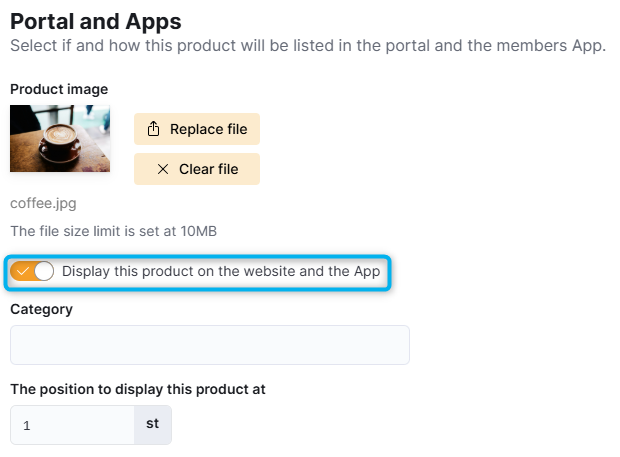
You should also make sure you've defined the following details for your plan:
- Product kind: defines where the plan is listed in the navigation
- Plan description: lets customers see at a glance what the plan offers
- Product image: lets customers see what the product is at a glance
- The position to display this plan at: defines the order in which plans are displayed
Once you've published your products, customers can easily purchase them from the Members Portal.