Customers can submit their proof of identity from the Account section of the Members Portal.
Customers only need to upload their documents on the Members Portal if you chose to manually review their documents when requesting an identity check.
If you requested an identity check through Stripe Identity, customers will submit their documents through Stripe.
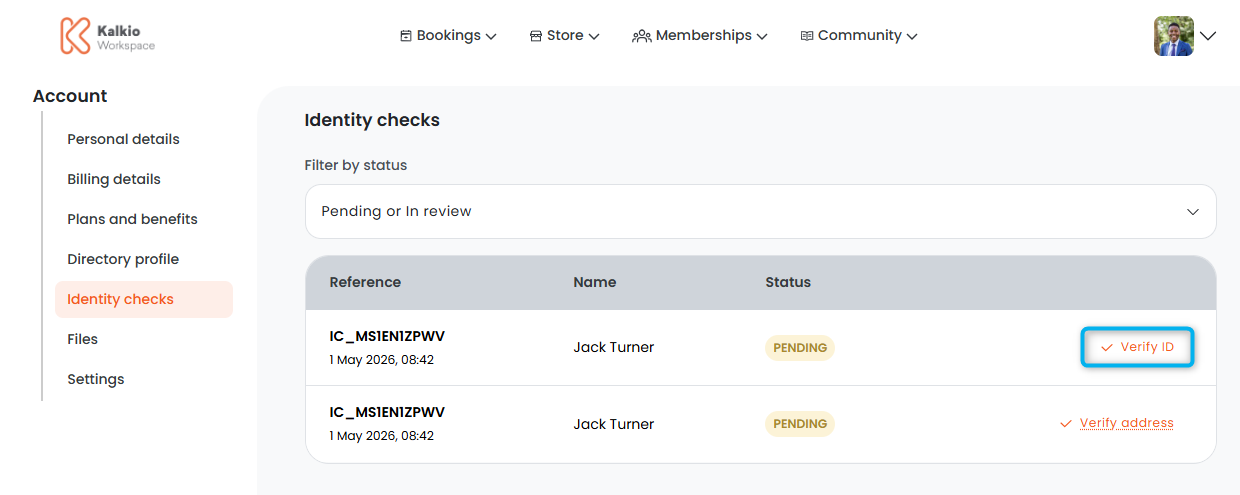
Log in to the Members Portal if you haven't already.
- Open the drop-down menu next to your icon.
- Select Account.
- Select Identity checks.
- Click Verify ID.
- Select your Document Type.
- Enter your Document Number.
- Select your document's Expiration Date.
- Under Issued by, enter who issued the document.
- Upload a photo of your face.
- Upload the front of your document.
- Upload the back of your document.
You don't need to upload the back of your document if you selected Passport under Document Type.
- Click Save.
All set! The identity check has been submitted.
You'll receive a notification letting you know that a customer has completed their identity check. You can manually review their document on the Admin Panel.