Customers can easily make a booking by chatting with our AI agent. Customers simply open a chat with the agent and describe the booking they'd like to make.
For example, "I'd like to book a meeting room from 1 - 5 p.m. tomorrow."
The agent will prepare a draft of the booking. Customers can then review the booking and make the following changes as needed before confirming:
- Selecting a unit (such as a specific desk or booth)
- Adding a guest
- Adding a product
- Adding booking notes
- Adding a discount code
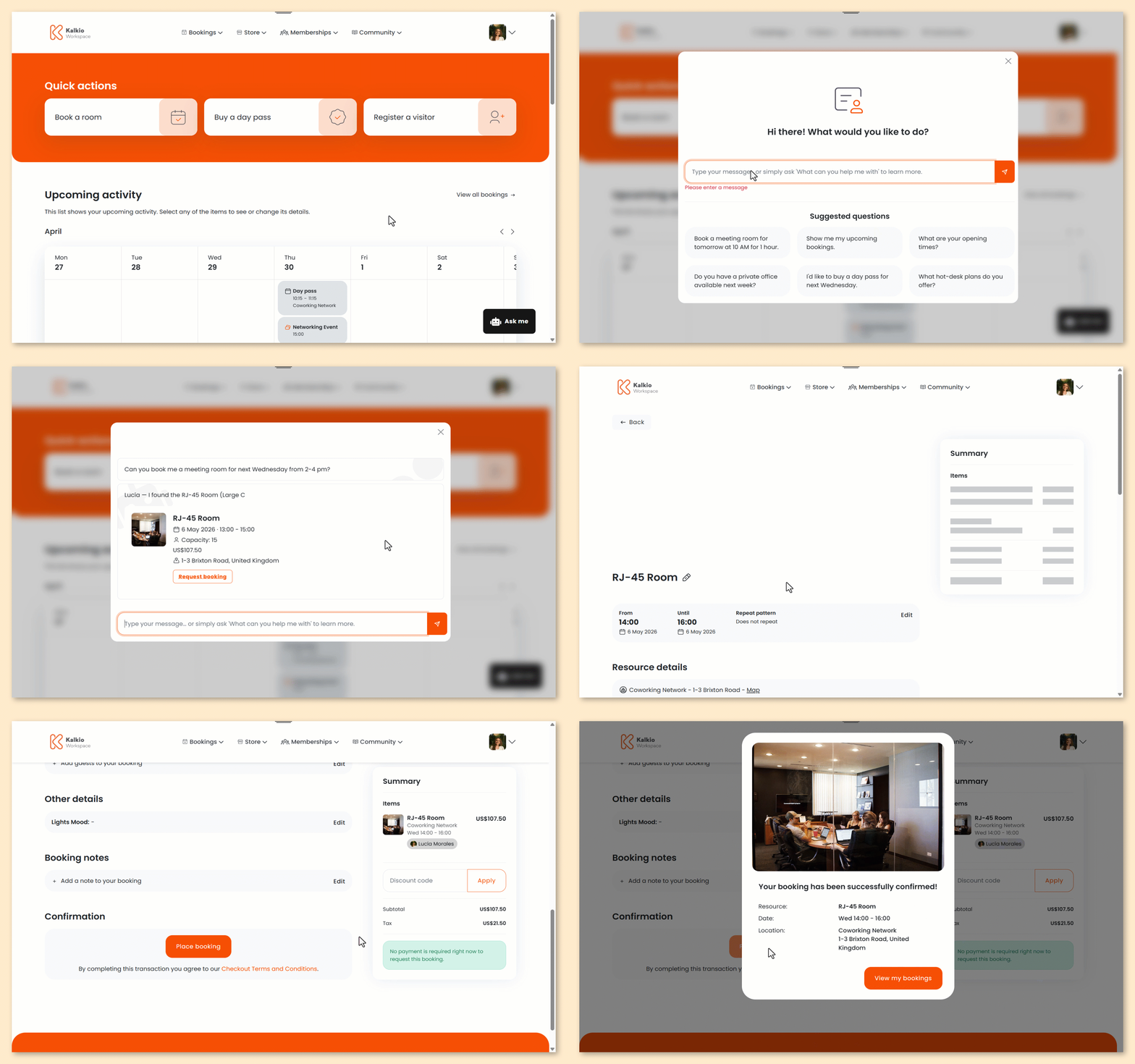
- Click on the Ask me button from anywhere on the Members Portal.
- Prompt the agent with the type of booking you’d like to make.
For example, "I’d like to book a hot desk for March 2nd from 8 a.m. - 5 p.m." Or, "Book me a meeting room for this Friday from 1-5 p.m."
The agent may take a few moments to find a suitable resource.
- Review the agent’s booking draft.
- Click Request booking.
You’ll be redirected to the booking confirmation screen.
- Select a specific unit or keep the auto-assigned one.
- Add guests to your booking as needed.
- Select any additional products you'd like to add.
- Enter any booking notes you'd like to add.
- Add your payment details if necessary.
- you're using guest checkout
- upfront payments for bookings are enabled
If you plan to add more items to your cart, you can wait to add your payment details until you're ready to check out.
Click Place booking to check out immediately or Add to cart if you'd like to add more items before checking out.
Adding a booking to your cart?Your booking will remain in your cart for 30 minutes and won't be reserved until you check out.
If it becomes unavailable before you check out, you'll need to remove it from your cart and make a new one.
All set! Customers will receive a confirmation email with their booking details.
If your space requires admin approval, you'll need to approve the booking before it's confirmed.
Customers can also edit or cancel their booking from the Bookings section of the Members Portal.