Team attendance lets customers see other team members' daily working locations at a glance.
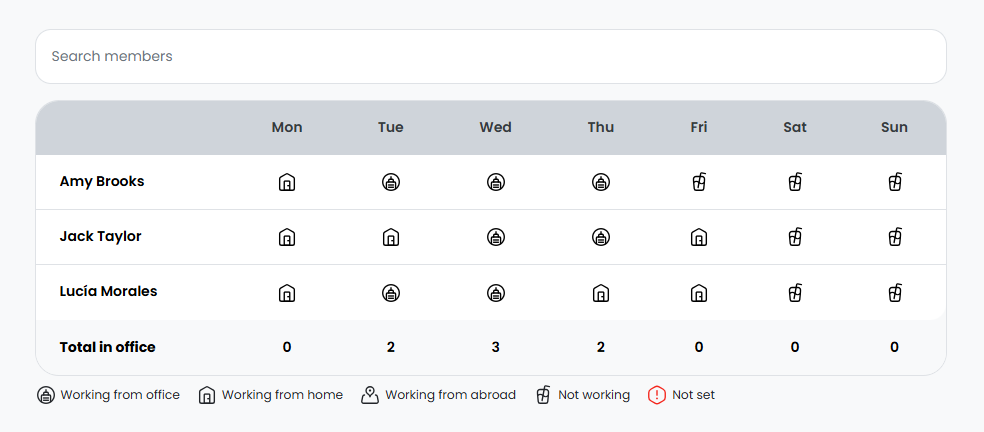
Team administrators can easily define attendance for each team member from the Members Portal.
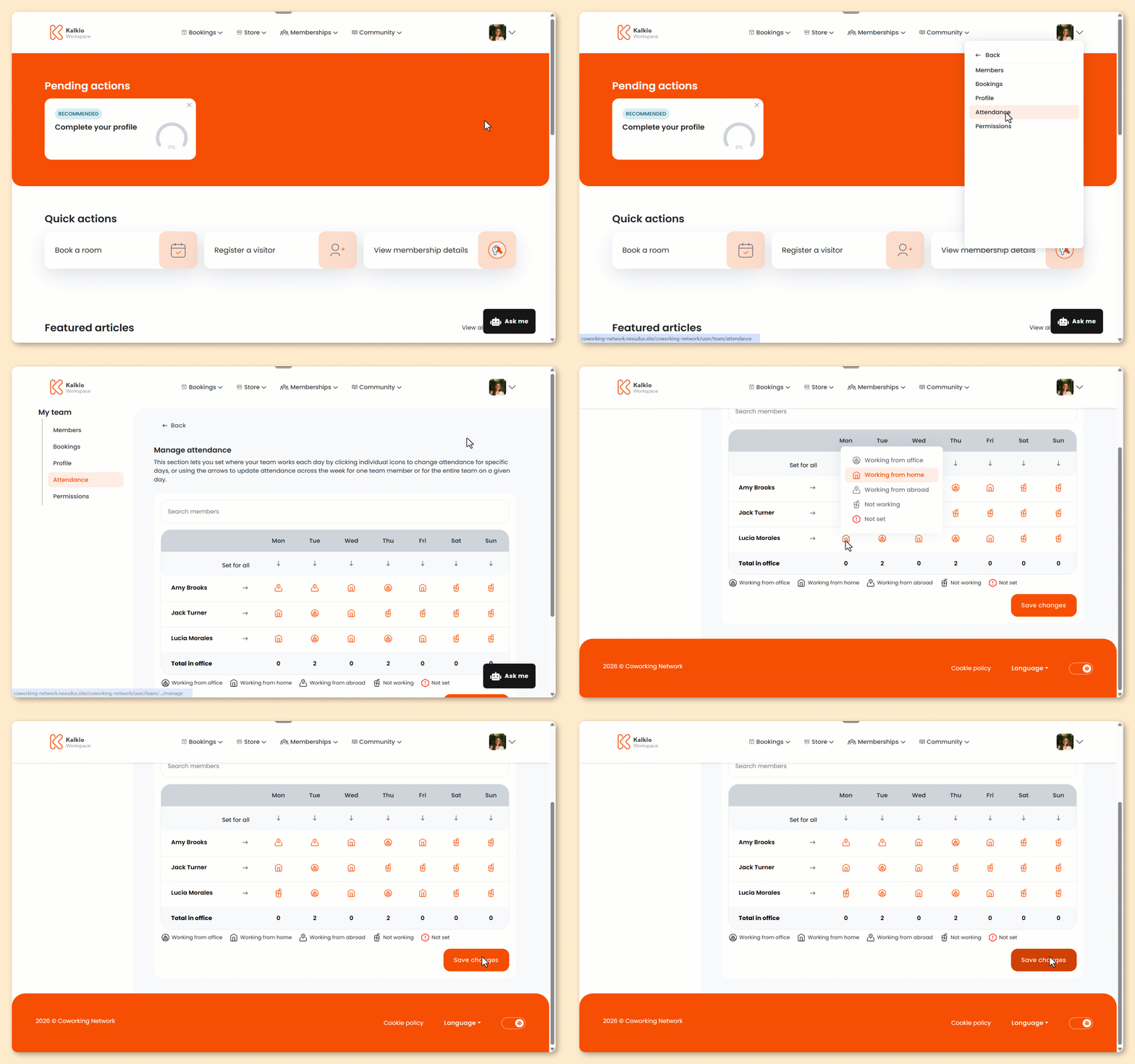
Log in to the Members Portal if you haven't already.
- Click on your icon.
- Select Team.
- Select Attendance.
- Click Manage attendance.
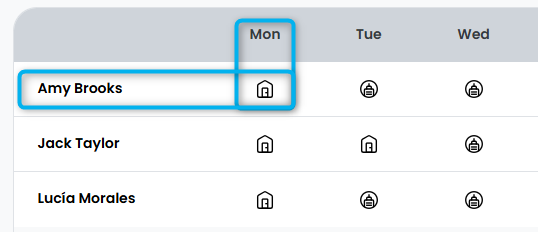
- Select the icon in the same row as the team member's name and the same column as the day of the week.
For example, you would click the following icon to set Monday attendance for Amy Brooks.
- Select the team member's working status for that day.
You can set one of five statuses:
- Working from office
- Working from home
- Working from abroad
- Not working
- Not set
- Repeat as needed.
Click the Save Changes button.
All set! The team member's attendance has been updated.