Customers can manually confirm predicted bookings from their Members Portal dashboard. They can also modify predicted bookings before confirming them.
Confirming Predicted Bookings Manually
Customers can confirm predicted bookings in just a few clicks from their Members Portal dashboard.
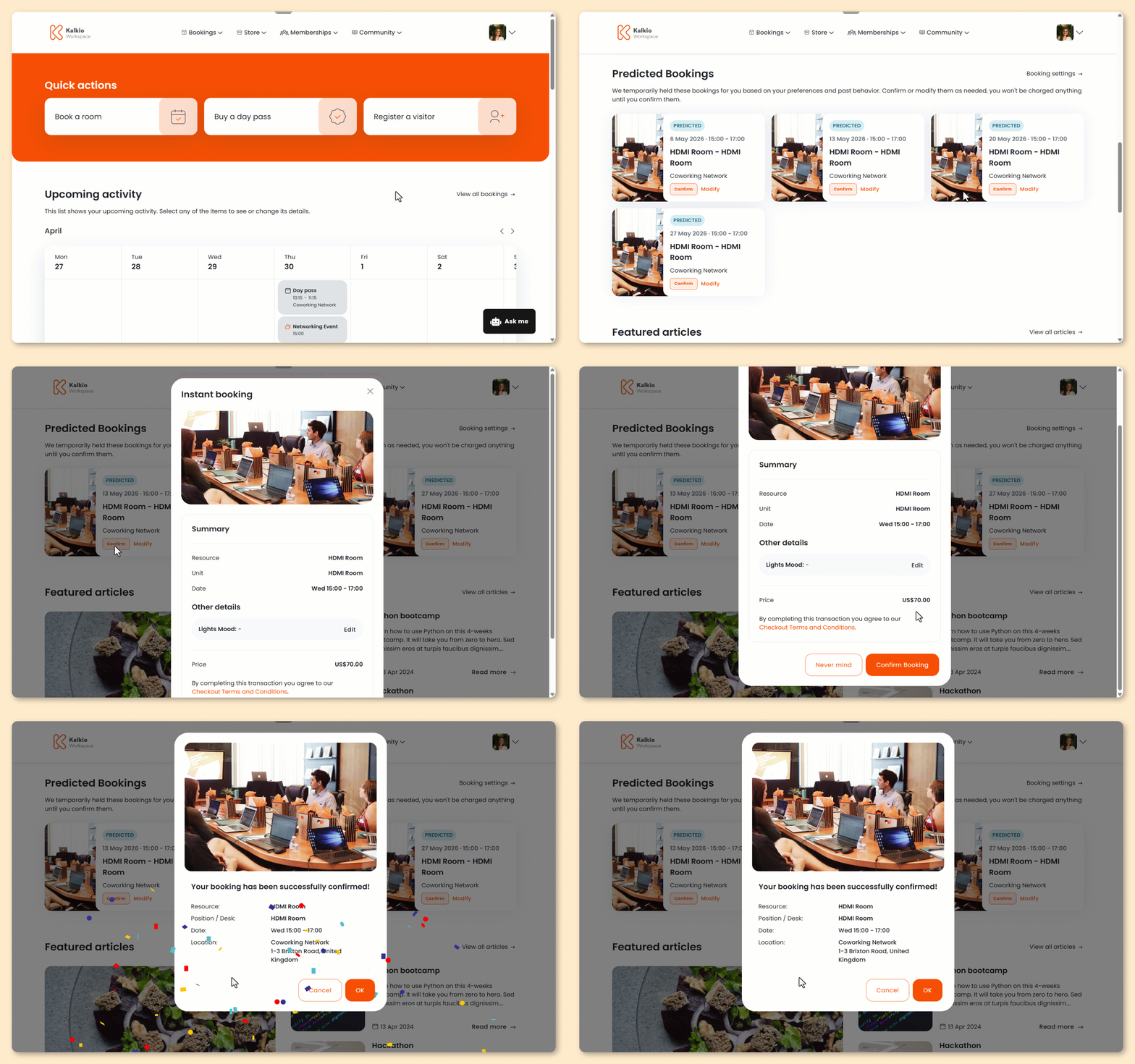
Log in to the Members Portal if you haven't already.
- From your dashboard, scroll down to Predicted bookings.
- Click Confirm on any suggested booking.
- Review the booking details.
- Click Confirm booking.
All set! Depending on your space’s settings, customers will be redirected to check out, or the booking will be added to their invoice.
If your space requires admin approval, you'll need to approve the booking before its confirmed.
Customers will also receive a confirmation email with their booking details. They can edit or cancel their booking from the Bookings section of the Members Portal.
Modifying and Confirming Predicted Bookings
Customers can easily modify predicted bookings before confirming them.
For example, a customer wants to reserve their usual hot desk from 8 - 6 this Monday instead of their usual 9 - 5.
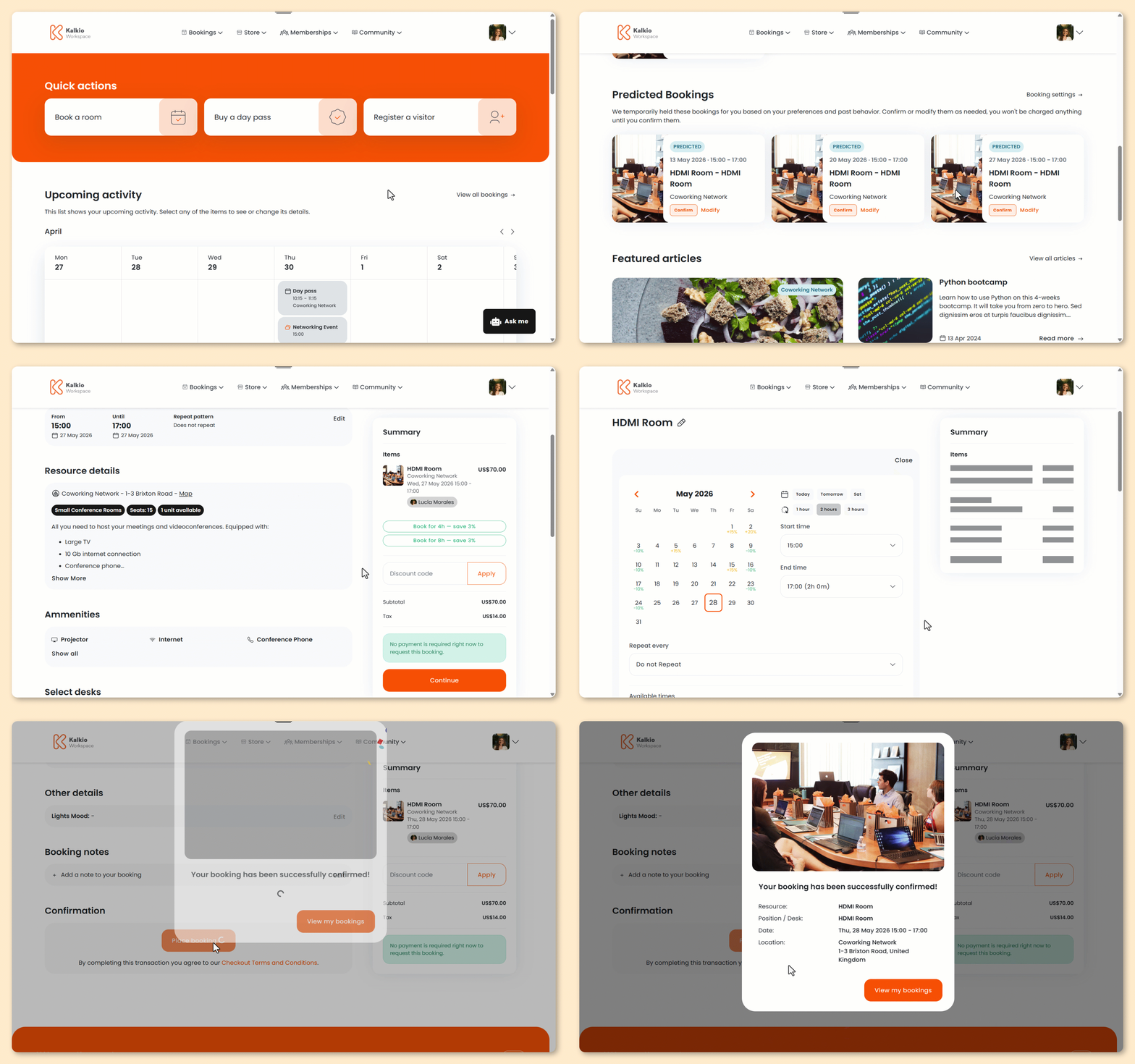
Log in to the Members Portal if you haven't already.
- From your dashboard, scroll down to Predicted bookings.
- Click Modify on any suggested booking.
- Click Book now on the selected resource.
- Select a unit or keep the auto-assigned one.
- Add the Full name and Email address of any guests you'd like to invite.
- Select any additional products you'd like to add.
- Enter any booking notes you'd like to add.
- Click Place booking.
All set! Depending on your space’s settings, customers will be redirected to check out, or the booking will be added to their invoice.
If your space requires admin approval, you'll need to approve the booking before its confirmed.
Customers will also receive a confirmation email with their booking details. They can edit or cancel their booking from the Bookings section of the Members Portal.