Customers can easily make bookings with a few taps on the Passport app.
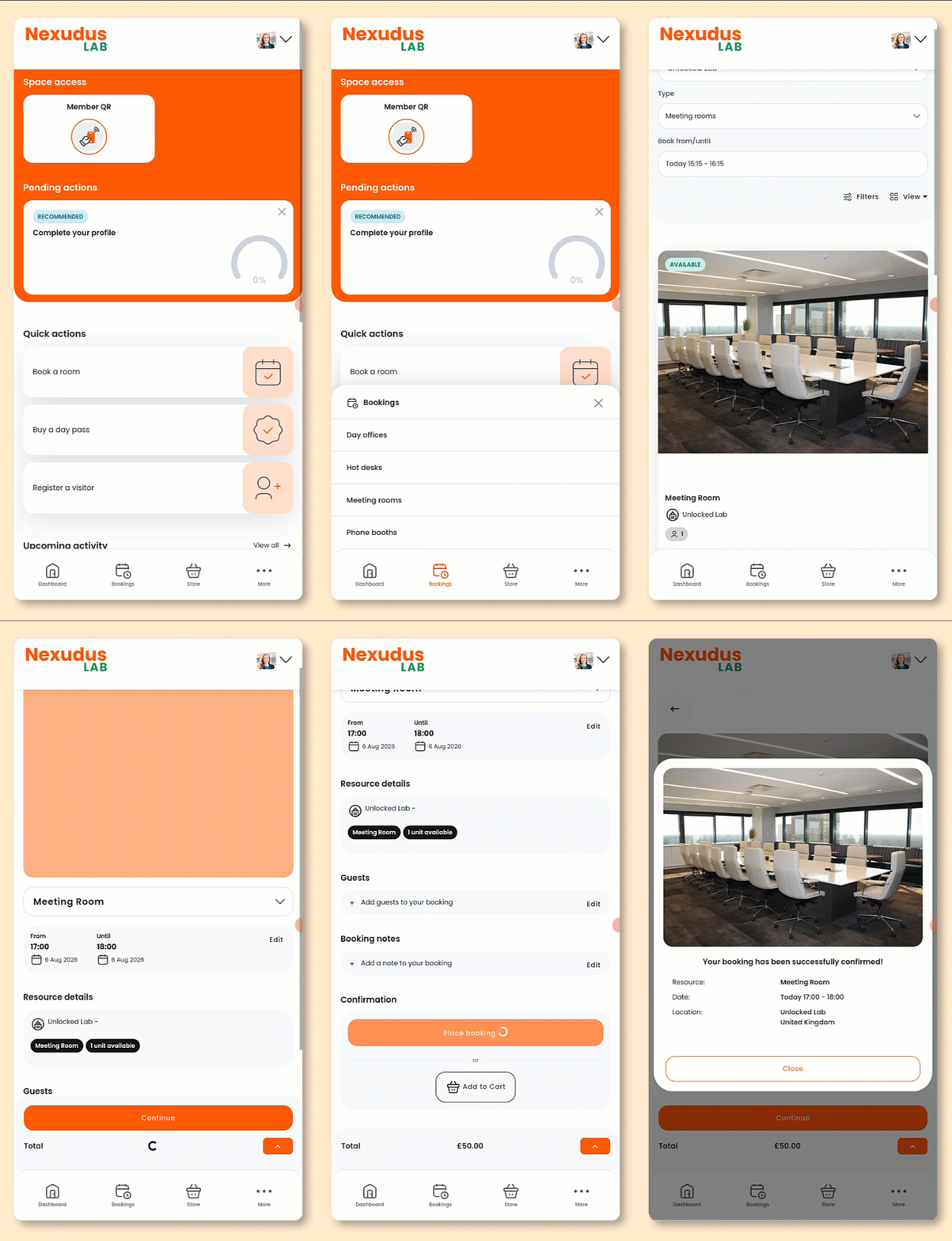
Open the Passport app if you haven't already.
- Tap Bookings in the navigation bar.
- Select the kind of resource you'd like to book.
Make sure all your resources have kinds.
To define a resource kind, open the resource record and select a kind from the drop-down menu.
- Under Book from/until, select the date and time you'd like to book the resource for.
- Tap Book now on the selected resource.
- Select a unit or keep the auto-assigned one.
- Add the Full name and Email address of any guests you'd like to invite.
- Select any additional products you'd like to add.
- Add Booking notes if needed.
- Add your Payment details if necessary.
You can wait to add your payment details until you're ready to check out.
Click Place booking to check out immediately or Add to cart if you'd like to add more items before checking out.
Adding a booking to your cart?Your booking will remain in your cart for 30 minutes and won't be reserved until you check out.
If it becomes unavailable before you check out, you'll need to remove it from your cart and make a new one.
All set! Customers will receive a confirmation email with their booking details.
If your space requires admin approval, you'll need to approve the booking before it's confirmed.
Customers can also manage their bookings from the Passport app.