Customers can easily manage their bookings in the Passport app. They can modify and cancel bookings just like on the Members Portal.
Modifying Bookings
Customers can easily edit their bookings if they need to make changes.
For example, they need to change the time of their booking.
Open the Passport app if you haven't already.
Tap your icon to open the drop-down menu.
- Tap Bookings.
- Select the booking you'd like to edit.
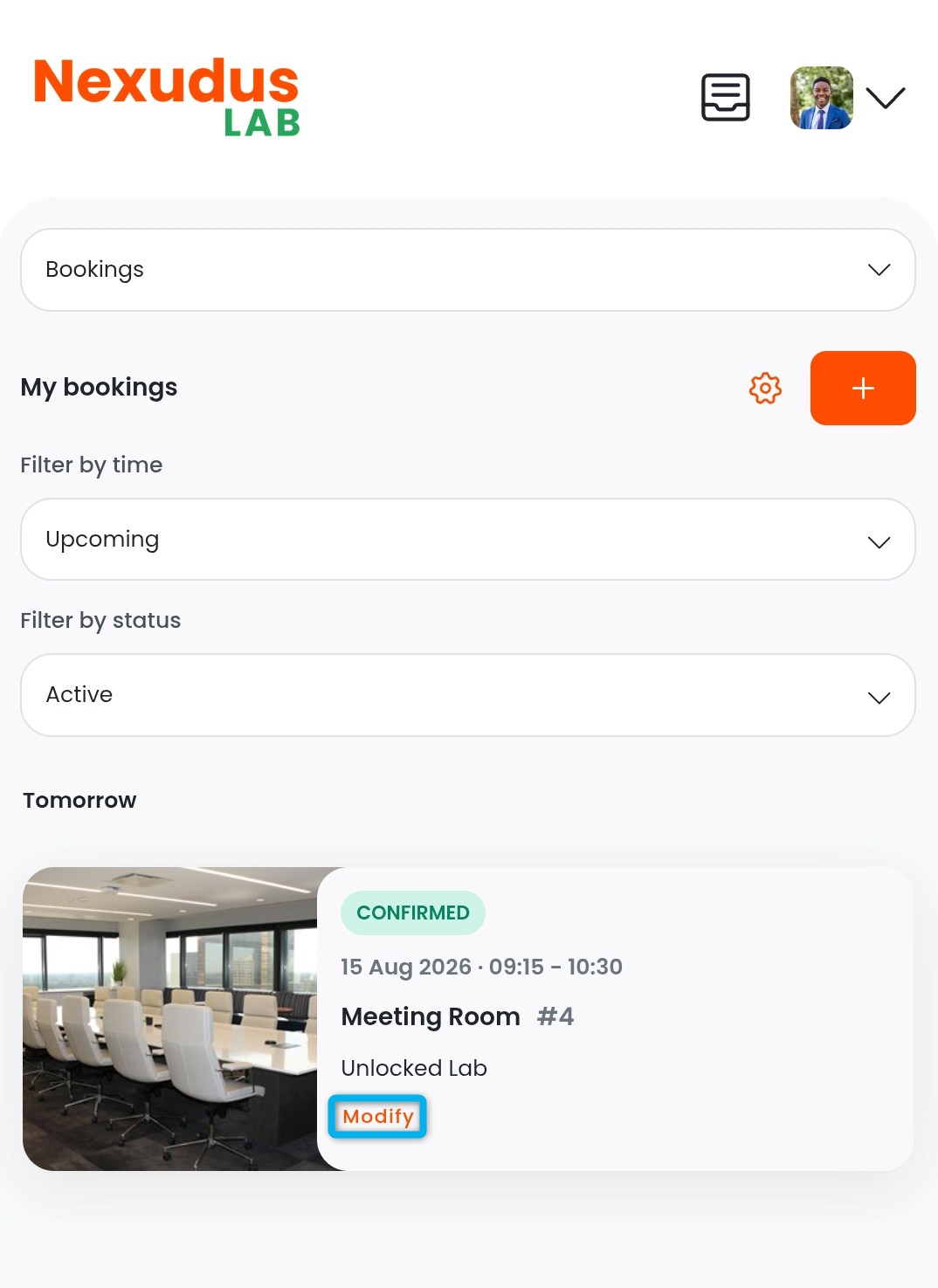
- Tap Modify on the booking you'd like to edit.
- Make changes to your booking as needed.
- Tap Update booking.
All set! The booking has been edited.
If your space requires admin approval for bookings, you'll need to approve the changes before they're confirmed.
Cancelling Bookings
Customers can cancel their bookings if they're no longer needed.
For example, their meeting was cancelled so they no longer need the meeting room.
-
Open the Passport app if you haven't already.
-
Tap your icon to open the drop-down menu.
-
Tap Bookings.
-
Select the booking you'd like to cancel.
-
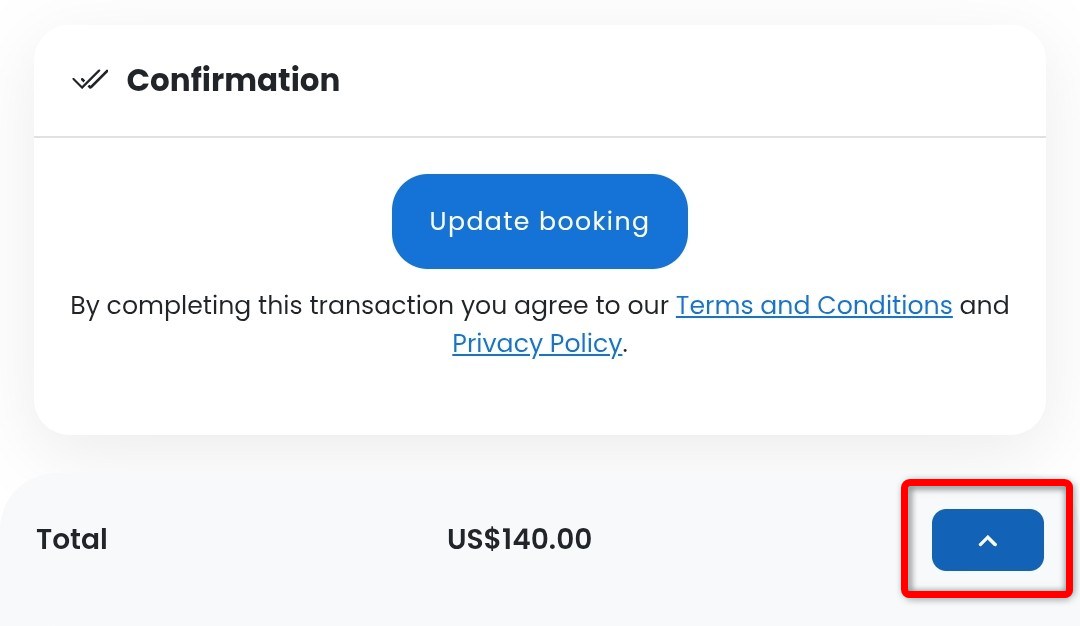
Open the menu next to Total at the bottom of the screen.
-
Tap Cancel booking.
All set! The booking has been cancelled.