If you've been using NexBoard for any amount of time, you'll need to download the new version to make the most of the latest changes.
The migration takes about 3 minutes per tablet.
For example, if you use NexBoard on 10 tablets, it'll take you around 30 minutes to move to the latest version.
If your tablets can't easily be removed from their wall mount or display, you may want to allocate a bit more time to complete the migration.
Step 1. Download the new version of NexBoard
You can download the new version of NexBoard on the App Store and Google Play in a few seconds.
Simply scan the QR codes below with your tablet's camera and download the app directly on your device.
Once you have the new app on your devices, it's time to start connecting a resource to each tablet.
Step 2. Connecting Resources to NexBoard
You can set up your tablet with NexBoard so customers can only book a single unit or choose from multiple units.
Unless you've created a custom role for NexBoard and assigned it to the admins in charge of connecting the resources to NexBoard.
Connecting NexBoard to a Single Unit
You can easily set up NexBoard so customers can only book a single unit from each tablet.
For example, you want to place a NexBoard tablet outside each meeting room in your space.
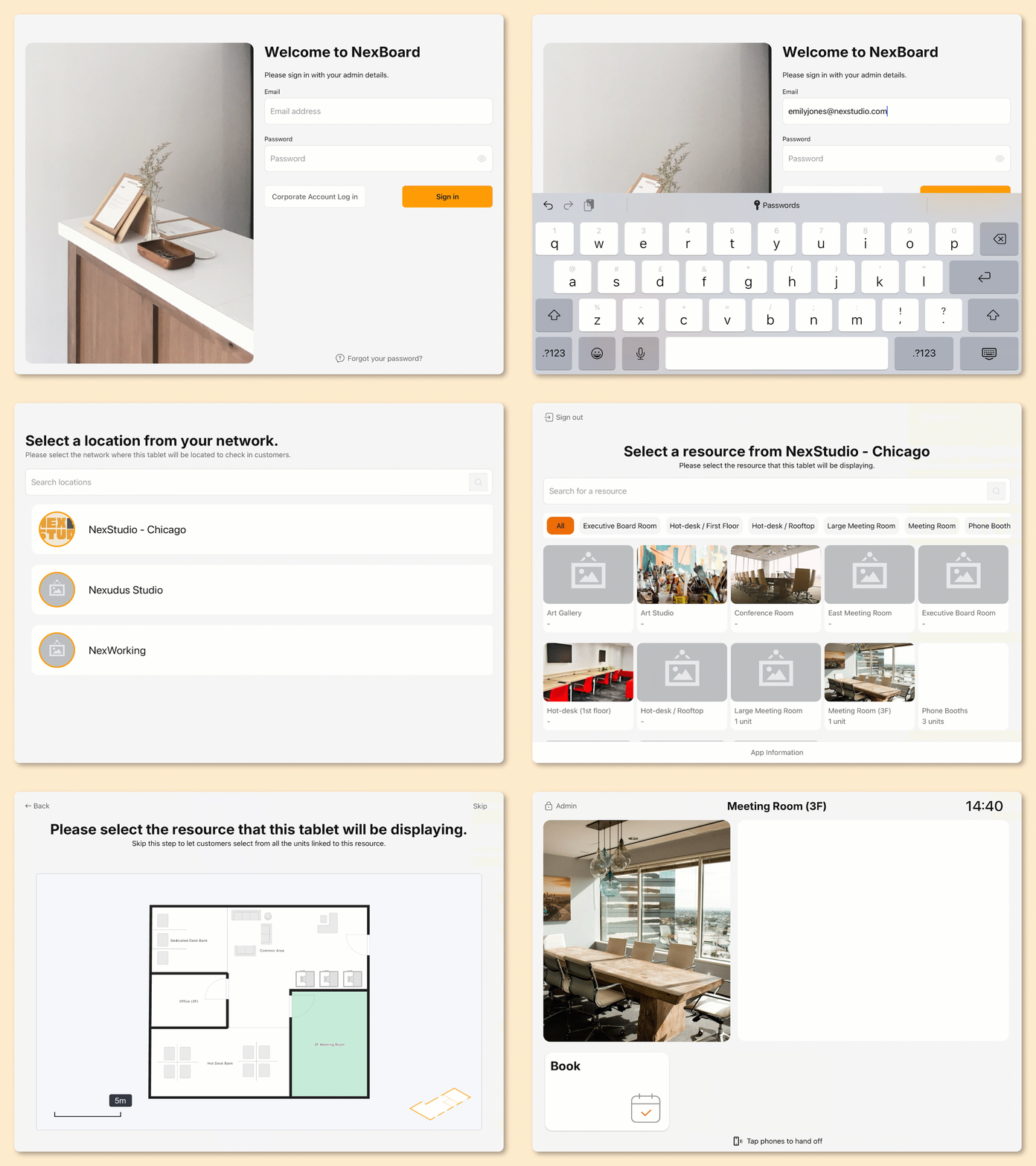
If you skip location or bluetooth access, you'll need to enable them from your tablet's app settings to let your customers make the most of the app.
- Open NexBoard.
- Log in using your admin credentials.
- Select your location.
- Select the resource you want to link to this tablet.
- Select the unit you want to link to this tablet.
You're all set! Customers can use the app straight away to book this resource or check its availability.
You can repeat the process on any other tablet using the same admin account to connect more resources.
Connecting NexBoard to Multiple Units
You can easily set up NexBoard so customers can book several units from a single tablet.
For example, you want customers to be able to book any hot desk from NexBoard without buying a separate tablet for each one.
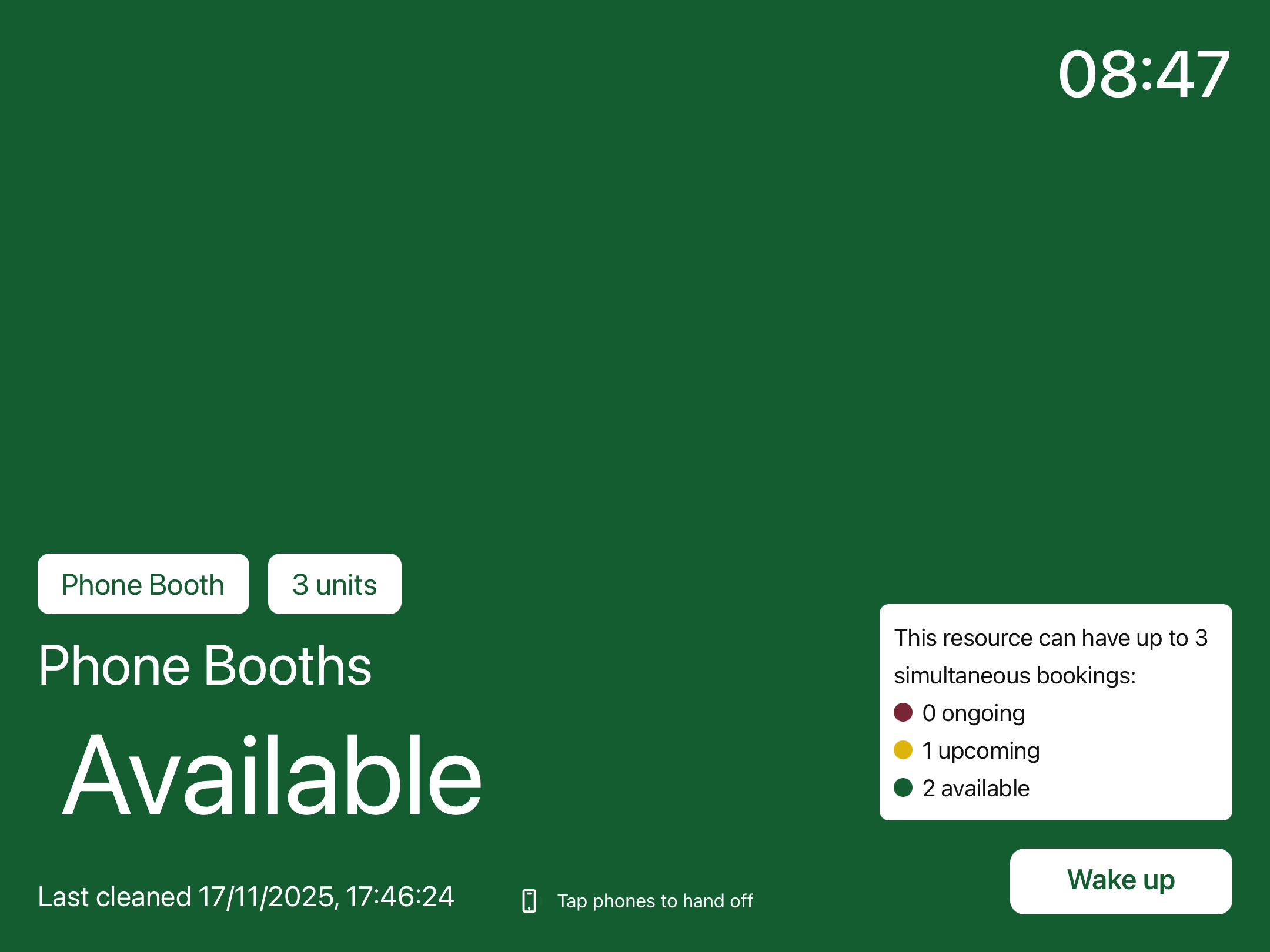
Customers will be able to see unit availability from the standby screen. They can choose to book a specific unit or have one auto-assigned.
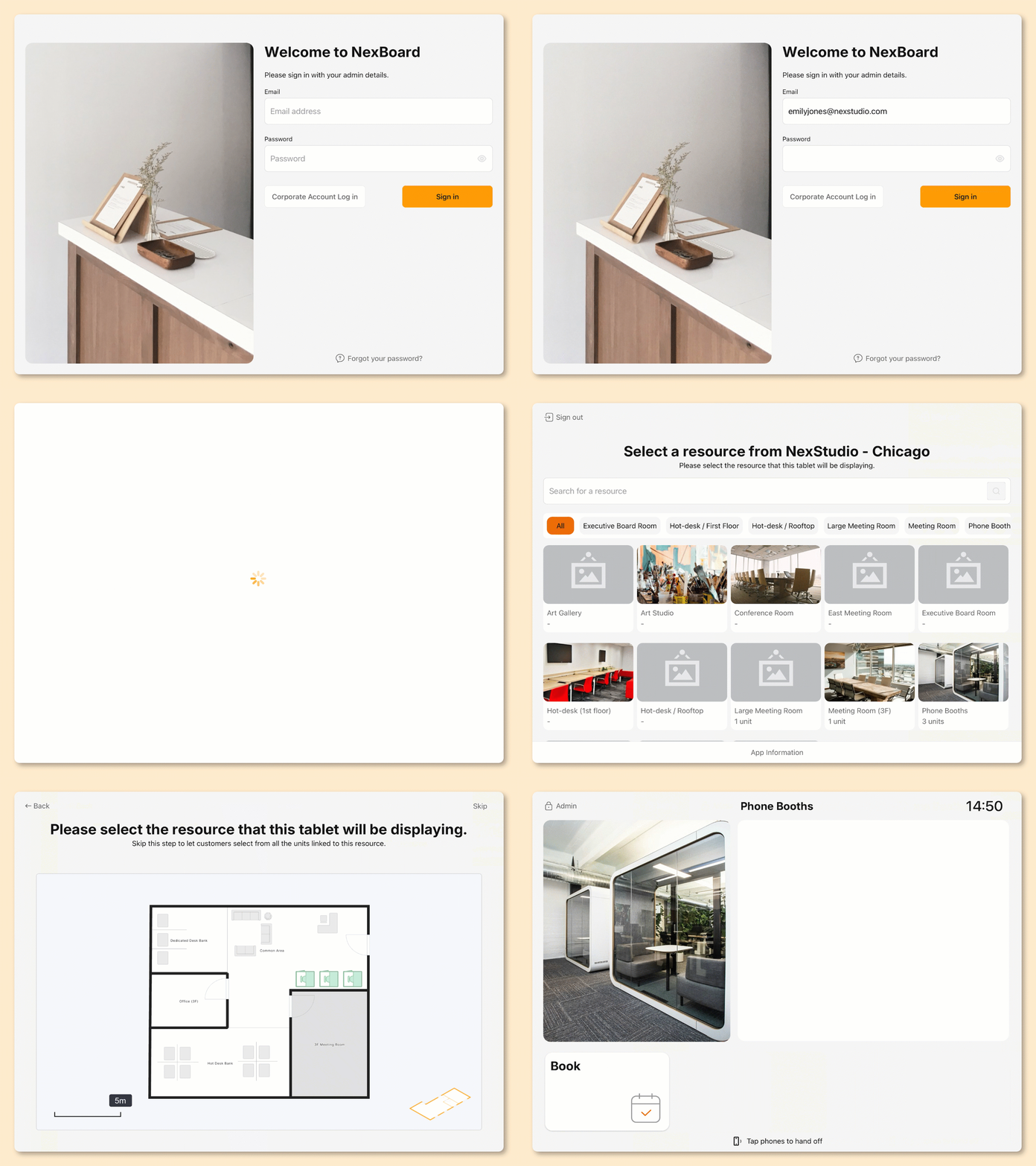
If you skip location or bluetooth access, you'll need to enable them from your tablet's app settings to let your customers make the most of the app.
- Open NexBoard.
- Log in using your admin credentials.
- Select your location.
- Select the resource you want to link to this tablet.
- Skip the unit selection.
All set! Customers can use the app straight away to book units from this resource or check its availability.
We recommend testing the new app by trying to book a resource and checking that the booking goes through without issues.
Once you've tested the app and made sure everything is running smoothly, we recommend deleting the old app from the tablet to avoid any future confusion.
You can easily spot the old app because it has a lighter orange logo, while the latest app has a red logo.