You can manually generate an e-invoice for any invoice you issued with Nexudus. Generating e-invoices sends those invoice to your local tax authorities once you've enabled e-invoicing.
You need to generate e-invoices for invoices you've already issued and want to transfer to tax authorities. Generating e-invoices for invoices you've already issued, even when they are due, will never charge your customers twice.
Go to Settings > Integrations > E-invoicing, toggle on Automatically generate and send eInvoicing documents for all invoices issued, and save your changes.
You'll still need to manually generate e-invoices as detailed below for any invoice you've already issued to transfer them to tax authorities.
From the Finance section
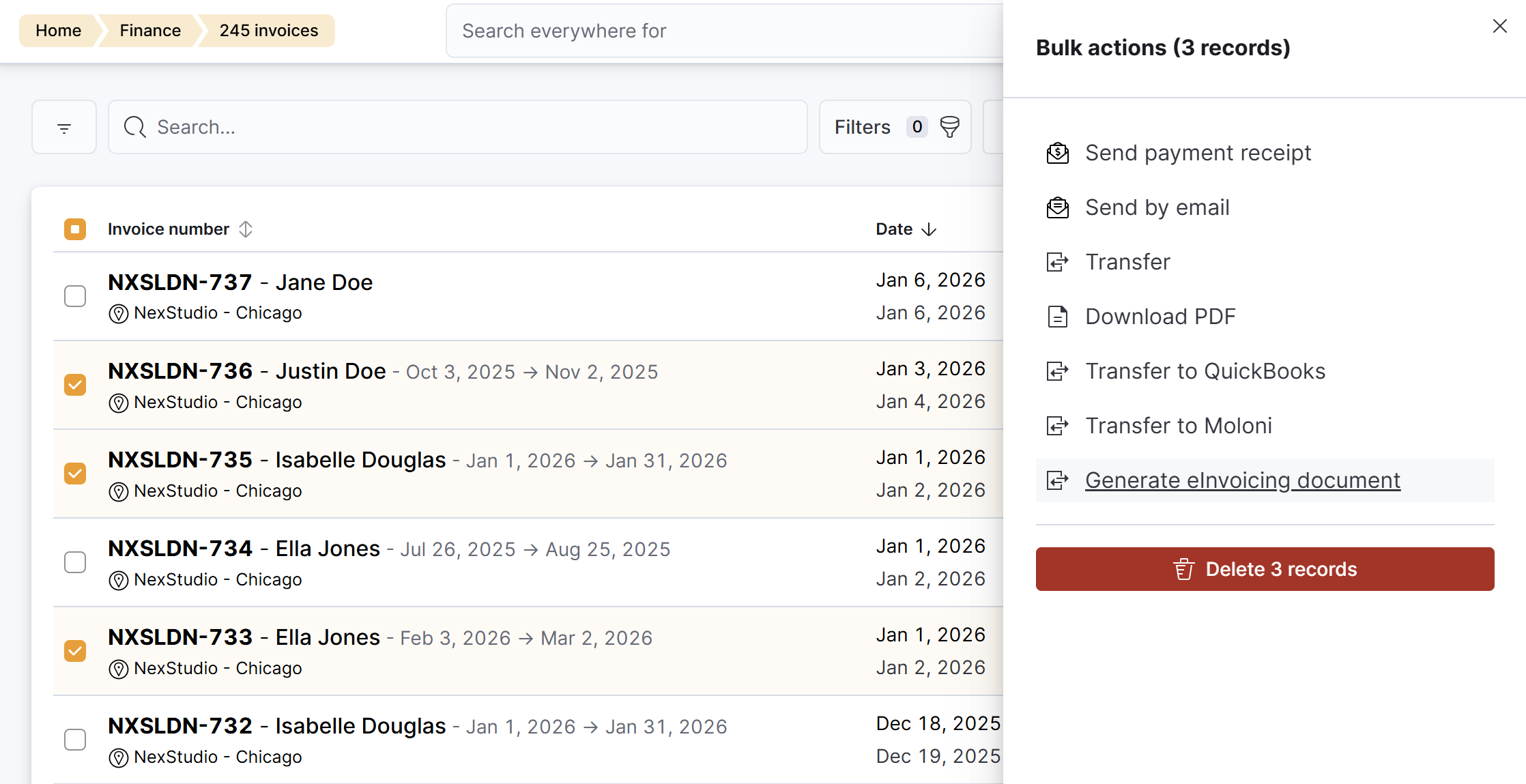
Log in to dashboard.nexudus.com if you aren't already.
- Click Finance > Invoices.
- Tick the checkbox next to every invoice you'd like to generate an e-invoice for.
- Click on the Bulk actions button.
- Click on Generate eInvoicing document in the Bulk actions menu.
Click Yes, do it to confirm.
All set! You can check on any potential errors or transfer issues via Finance > eInvoicing errors on the Admin Panel.
From customer accounts
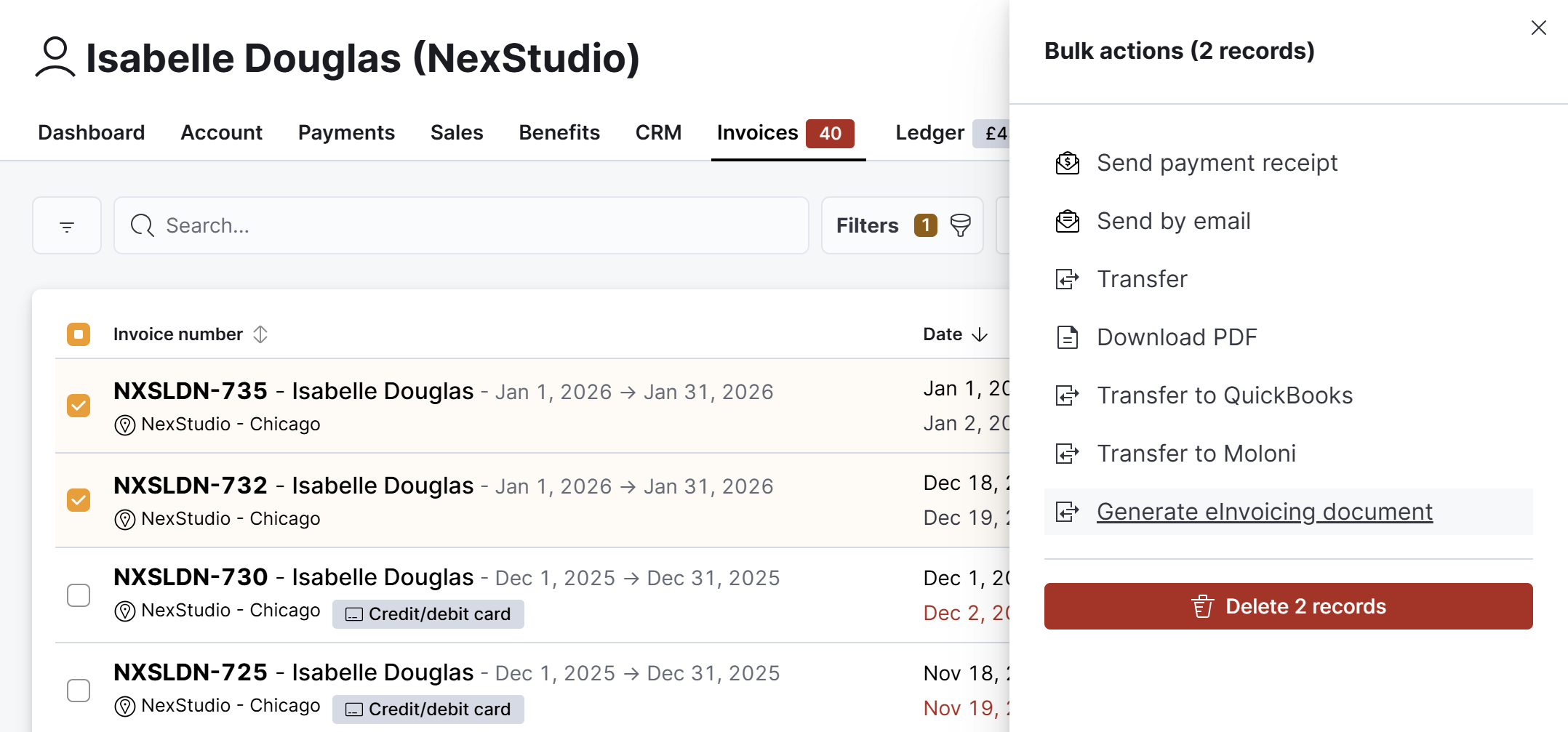
Log in to dashboard.nexudus.com if you aren't already.
- Click Operations > Members and contacts.
- Click on the relevant customer.
- Click on their Invoices tab.
- Tick the checkbox next to every invoice you'd like to generate an e-invoice for.
- Click on the Bulk actions button.
- Click on Generate eInvoicing document in the Bulk actions menu.
Click Yes, do it to confirm.
All set! You can check on any potential errors or transfer issues via Finance > eInvoicing errors on the Admin Panel.