Customers can book from the Floor plan view to choose a resource based on where it is in your space.
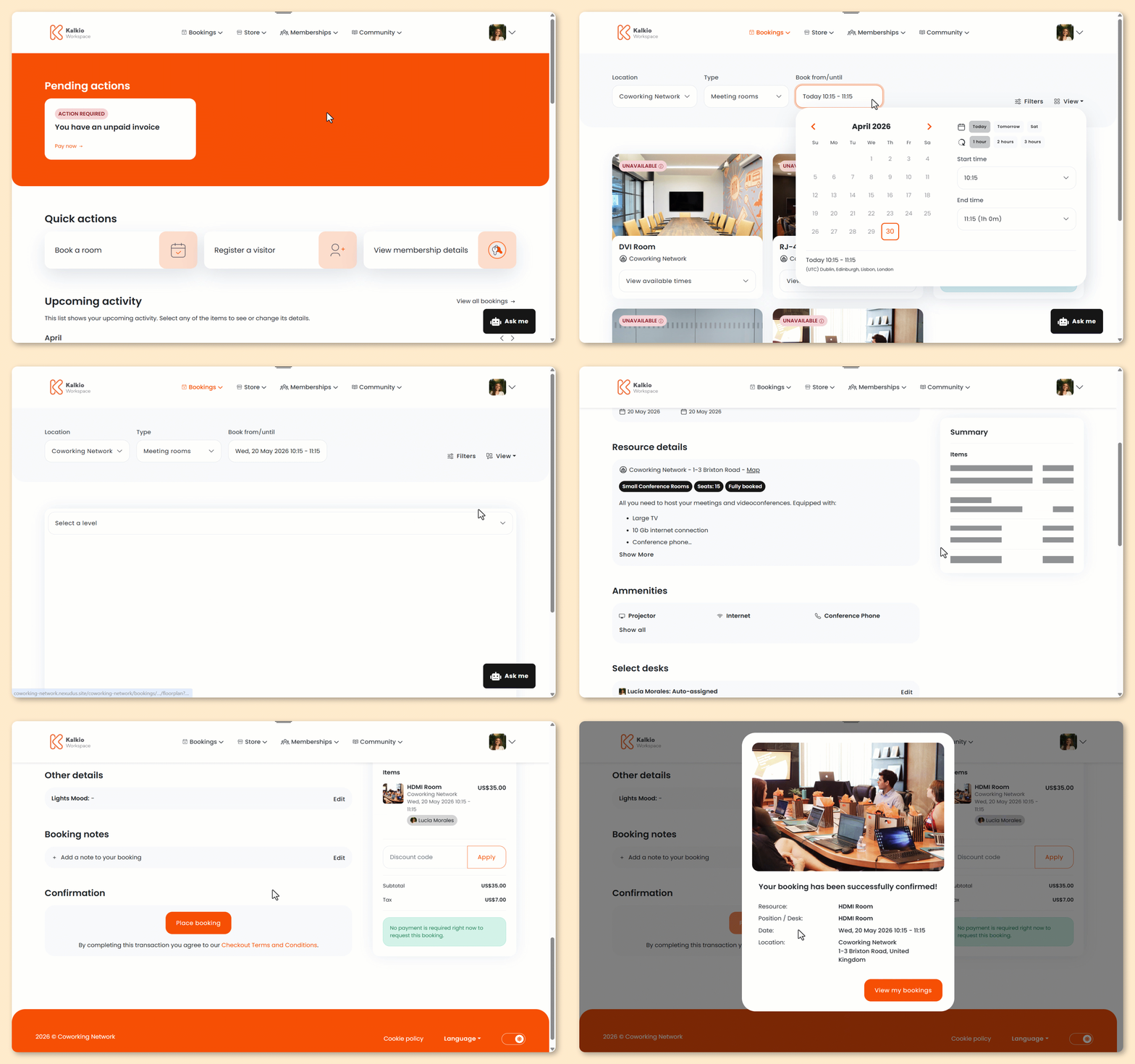
Log in to the Members Portal if you haven't already.
- Select a resource kind from the Bookings drop-down menu.
If your space doesn’t offer a specific kind of resource, it won’t be available in the navigation.
- Select a date and time under Book from/until.
- Select the Floor plan option from the View drop-down menu.
- Select a Level.
- Select a resource or unit from the floor plan.
- Click Book now.
You'll be redirected to the booking details page.
- Select a unit or keep the auto-assigned one.
- Add the Full name and Email address of any guests you'd like to invite.
- Select any additional products you'd like to add.
- Enter any booking notes you'd like to add.
- Add your payment details if necessary.
- you're using guest checkout
- upfront payments for bookings are enabled
If you plan to add more items to your cart, you can wait to add your payment details until you're ready to check out.
Click Place booking to check out immediately or Add to cart if you'd like to add more items before checking out.
Adding a booking to your cart?Your booking will remain in your cart for 30 minutes and won't be reserved until you check out.
If it becomes unavailable before you check out, you'll need to remove it from your cart and make a new one.
All set! Customers will receive a confirmation email with their booking details.
If your space requires admin approval, you'll need to approve the booking before it's confirmed.
Customers can also edit or cancel their booking from the Bookings section of the Members Portal.