Customers can book from the List view to browse all the resources in your space and choose the one that best suits their needs.
.png)
Customers can make an instant booking or a detailed booking from the List view.
Customers in a hurry can make an instant booking if they only need to select the resource, date, and time and don't need to add further details.
For example, a customer wants to book a hot desk on Wednesday from 9 a.m. - 5 p.m. and doesn't care which desk they're assigned.
Customers can make a detailed booking if they want to do any of the following:
- Select a unit (such as a specific desk or booth)
- Add guests
- Add products
- Add booking notes
- Add discount codes
For example, a customer wants to book a meeting room to present to a client, so they want to add a guest and a catering product.
Making Instant Bookings
Customers can make an instant booking if they just need to select the resource, date, and time.
Customers will only see the option to instant book if they've filtered by the time that exactly matches the timeslot.
Let's say your resource has timeslots of 9 - 1 and 1-5.
Customers searching for resources available from 9 - 3 won't see the instant booking option.
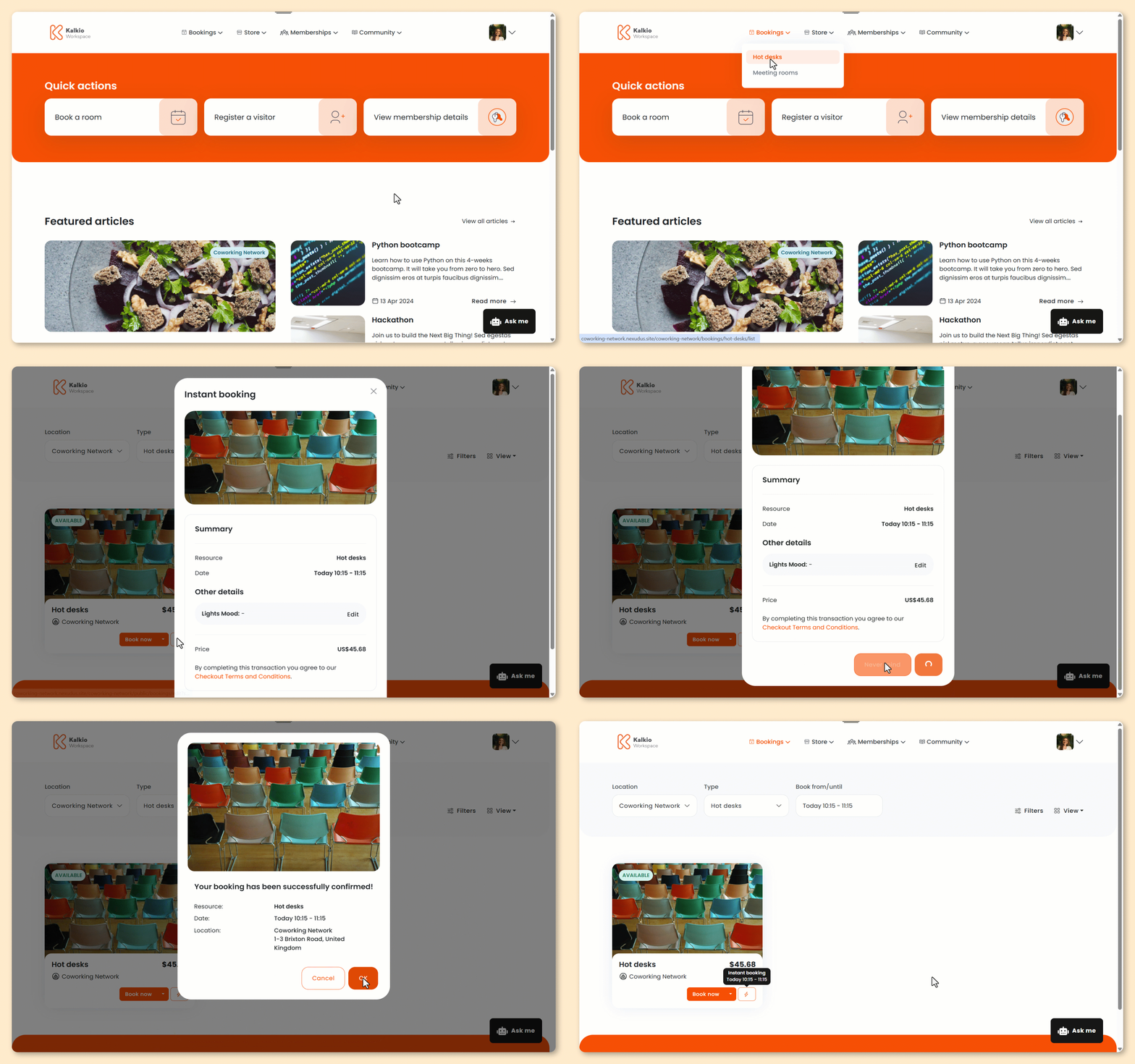
- Log in to the Members Portal if you haven't already.
- Select a resource kind from the Bookings drop-down menu.
- Under Book from/until, select your booking date and time.
- Click on the instant booking icon under the resource you'd like to book.
- Review the booking details.
- Click Confirm booking.
All set! Depending on your space’s settings, customers will be redirected to check out, or the booking will be added to their invoice.
If your space requires admin approval, you'll need to approve the booking before its confirmed.
Customers will also receive a confirmation email with their booking details. They can edit or cancel their booking from the Bookings section of the Members Portal.
Making Detailed Bookings
Customers can make a detailed booking if they want select a specific unit or add any of the following:
- guests
- products
- booking notes
- dicount codes
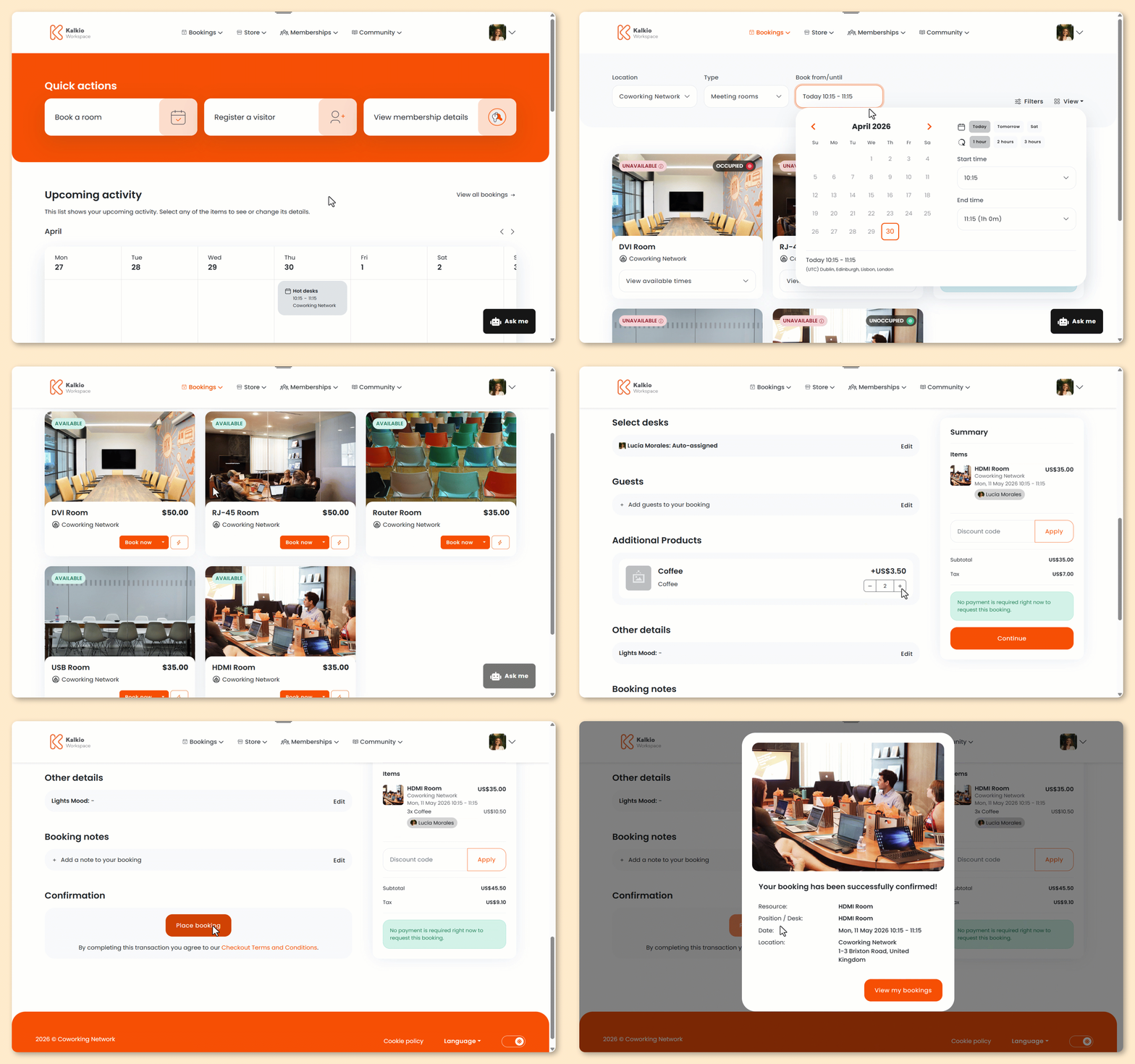
Log in to the Members Portal if you haven't already.
- Select a resource kind from the Bookings drop-down menu.
If your space doesn’t offer a specific kind of resource, it won’t be available in the navigation.
- Under Book from/until, select a date and time to see which resources are available.
- Click Book now on the selected resource.
- Select a unit or keep the auto-assigned one.
- Add the Full name and Email address of any guests you'd like to invite.
- Select any additional products you'd like to add.
- Enter any booking notes you'd like to add.
- Add your payment details if necessary.
- you're using guest checkout
- upfront payments for bookings are enabled
If you plan to add more items to your cart, you can wait to add your payment details until you're ready to check out.
Click Place booking to check out immediately or Add to cart if you'd like to add more items before checking out.
Adding a booking to your cart?Your booking will remain in your cart for 30 minutes and won't be reserved until you check out.
If it becomes unavailable before you check out, you'll need to remove it from your cart and make a new one.
All set! Customers will receive a confirmation email with their booking details.
If your space requires admin approval, you'll need to approve the booking before it's confirmed.
Customers can also edit or cancel their booking from the Bookings section of the Members Portal.