The PaperCut extender has been replaced by the new PaperCut bridge integration.
Check out Preparing your PaperCut Bridge Integration if you're integrating PaperCut for the first time.
Customers won't be able to print while you migrate from the extender to the bridge agent.
Make sure you complete these steps from your network location.
If you have an individual PaperCut server for each location, you'll need to complete the migration process for each location, as each PaperCut server requires its own dedicated bridge agent.
Step 1: Disable the PaperCut Extender
You need to disable the extender before you can set up the PaperCut bridge integration.
Log in to dashboard.nexudus.com if you aren't already.
- Go to Settings > Integrations > PaperCut.
- Toggle off Enable PaperCut integration.
Click the Save Changes button.
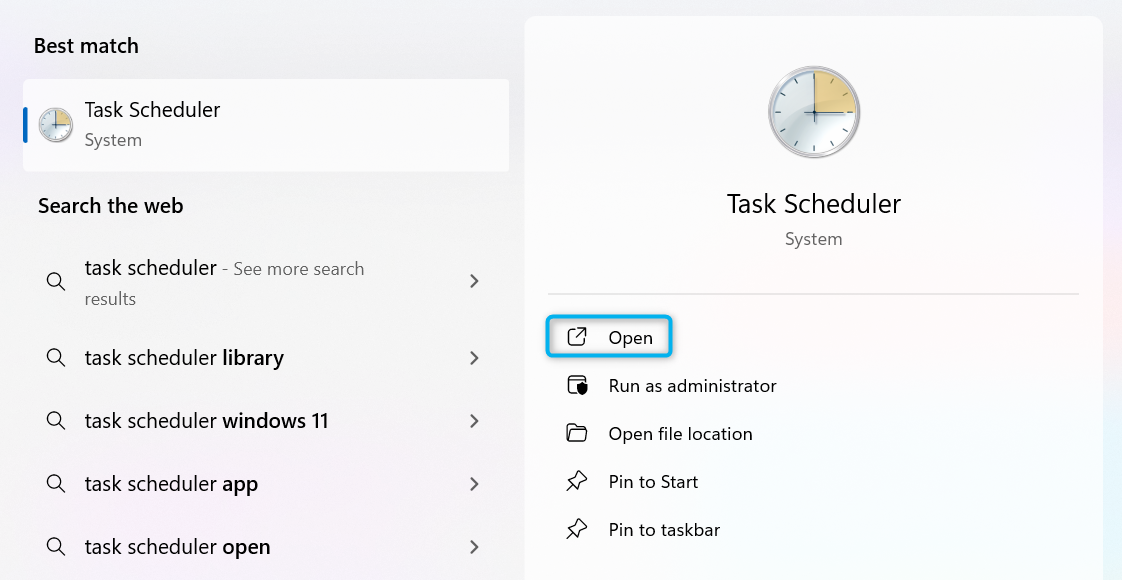
- On your device, open Task Scheduler from Windows Search.
- Open the folder named Nexudus_spaces.
- Right-click and select Disable for each task.
All set! The next step is to review your device settings.
Step 2: Review your Device Settings
While PaperCut MF and NG are available on all operating systems, including macOS, the Nexudus bridge integration only works with devices running Windows.
We recommend installing Nexudus bridge on the same device as your PaperCut driver.
The bridge can't regularly sync print jobs and users when you turn off the device.
You'll also need your device's IP address. You can easily find your device's IP address by opening a command prompt from Windows Search and entering the command ipconfig.
Make a note of your IPv4 address, which is a set of four numbers separated by periods. You'll need this address at two steps in the integration process: when you define your PaperCut Settings and when you set up the integration.
You should also make sure you're running the latest version of .NET on your device.
Once you've reviewed your device settings, the next step is to review your settings in PaperCut.
Step 3: Review your Settings in Papercut
The settings you've already configured in PaperCut for the extender will remain the same for the bridge agent.
You also need to complete three additional steps in PaperCut: setting up an authentication token, adding your IP address as an approved server, and setting your minimum password length.
Setting up an Authentication Token
You'll need to set up an authentication token so that the bridge agent can communicate with PaperCut.
You can follow PaperCut's instructions to set up this token. You'll need to add it in Nexudus when you set up the integration.
Store it in a safe location and don't share it with anyone.
Adding your IP Address as an Approved Server
You'll also need to add your IP address to the list of approved servers.
- Go to Options > Config Editor on the PaperCut Admin Panel.
- In the field next to auth.webservices.allowed-addresses, add a comma and your IP address.
- Make sure you add a comma between the IP addresses
- Make sure there are no spaces before or after your IP address
✅ Correct Format

❌ Incorrect Format

- Click Update.
Setting your Minimum Password Length
You'll need to set a minimum password length of 8 digits or more in PaperCut to allow customers to log in to the client portal to print. The password will always be the customer's PIN code in Nexudus preceded by several zeroes.
- Go to Options > Config Editor on the PaperCut Admin Panel.
- In the field next to internal-users.self-registration.min-password-length, enter a digit that is 8 or higher.
- Click Update.
Customers will now be able to log in to the PaperCut client portal using their Nexudus PIN code preceded by several zeroes.
For example, if a customer's PIN code in Nexudus is 12345 and you set the minimum password length to 8, the customer's password will be 00012345.
Once you've configured your settings in PaperCut, the next step is to begin the integration process.
Step 4: Set up the PaperCut Bridge Integration
The final step is to set up the bridge integration on your device.
Log in to dashboard.nexudus.com if you aren't already.
- Go to Settings > Integrations > PaperCut Bridge.
- Toggle on Enable PaperCut Bridge integration.
- Click Download Nexudus Bridge Agent.
Your file may take a few moments to download.
- In your device's C: drive, create a folder with the name Nexudus PaperCut Bridge.
- Move the file from your Downloads folder to the Nexudus PaperCut Bridge folder.
Make sure each agent is in a separate folder.
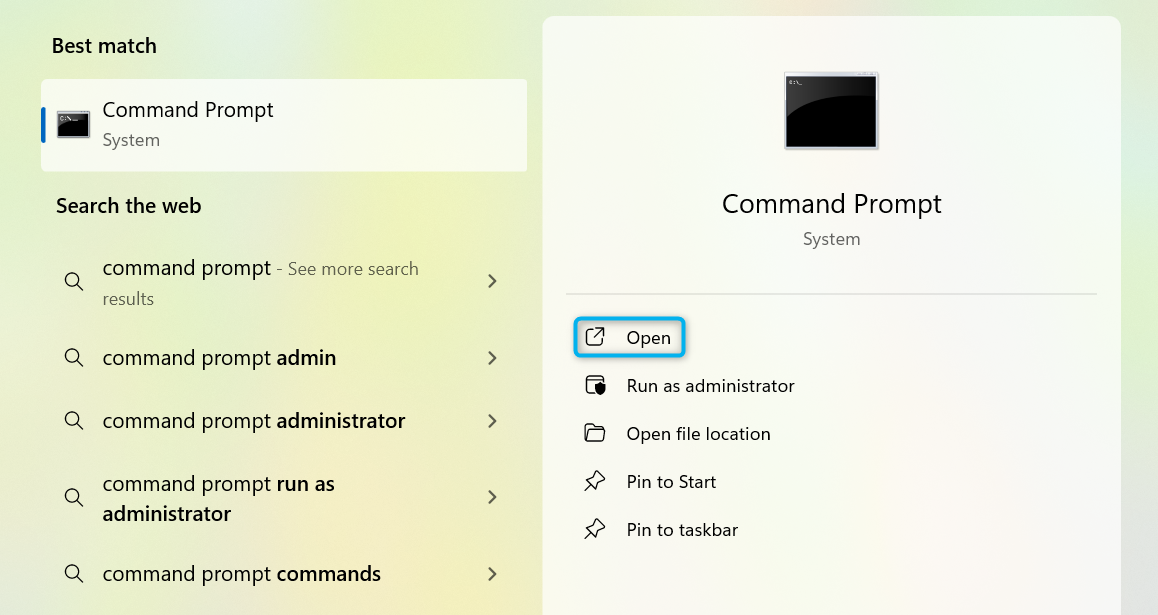
- Open Command Prompt on your device.
- Look for Command Prompt using Windows Search.
- Select Open.
- Add the file path to the location where you stored the bridge agent.
- Go to where the agent is stored on your device.
- Right-click and select Copy as Path.
- Paste the path directly into the command prompt using Ctrl + V.

- Tap Enter.
You should get an output similar to the one shown below

- Copy the device ID after Register device with ID.
Close the command prompt window and return to the Nexudus Admin Panel.
- Go to Settings > Devices.
- Click Register device.
- Enter your device ID.
- Click Register device.
- Click on the device you've just registered.
- Rename your device to PaperCut Bridge Agent.
- Under Configuration data > host, enter http:// followed by your IP address followed by :9191
- Use HTTP protocol
- Leave no spaces or slashes after your address
| ✅ Correct Format | ❌ Incorrect Format |
|---|---|
 |
  |
Click the Save Changes button.
Open a new command prompt.
- Enter the file path to the location where you stored the bridge agent followed by a space and --install.

- Tap Enter.
You should get an output similar to this:

Close the command prompt and open the services console on your device.
- Use Windows Search to find Services.
- Click Open.
- Scroll down to the Nexudus Bridge Agent.
- Right-click on the agent and select Start.
Return to the Nexudus Admin Panel.
- Go to Settings > Integrations > PaperCut Bridge.
- Enter your authorization token from PaperCut.
You can find your authorization token in your PaperCut admin panel under Options > Config Editor > auth.webservices.auth-token.
- Enter your Nexudus bridge device ID.
You can also find this ID in your device's services console by clicking on Nexudus Bridge Agent.
- Enable the following toggles based on your PaperCut pricing model.
- Pay-per-print Only or Credits & Pay-per-print
Enable New members should be set as unrestricted users in PaperCut by default and New contacts should be set as unrestricted users in PaperCut by default.
- Credits Only
Make sure all four toggles are disabled.
- Free unlimited printing
Enable New contacts registered can print for free by default and New members registered can print for free by default.
- Toggle on Use Pincode as Access Card ID if you'd like customers to be able to use their PIN code to release PaperCut prints.
- Under Printing Credit Type, add your printing credit if you're using the Credits Only or Credits & Pay-per-print pricing model.
- Under Print Usage Product, add your product dedicated to printing if you're using the Pay-per-print Only or Credits & Pay-per-print pricing model.
- Select the locations where you'd like to enable the integration.
- Click Save changes.
All set! Now that you've successfully set up the integration, the bridge agent will sync any changes between PaperCut and Nexudus in minutes.
New customers will be given access according to the settings you've enabled above or when you give them printing credits.
You can also transfer customers individually if needed.